
1. 總覽
現在要如何開始使用 AI 建構內容?對大多數人來說,通常會先問一個簡單的問題:「模型真的能協助解決我一直在思考的問題嗎?」這時 Google AI Studio 就能派上用場。您可以在這裡快速設計任何內容的原型。我一直想改造廚房,相信 Gemini 能幫上忙,但我只是工程師,不是一般承包商。我甚至不確定該要求什麼,因為有太多需要考慮的事項,例如法規、固定裝置等。因此,我們將逐步完成這項作業,先請 Gemini 為我們生成非常詳細的提示,然後生成完整的裝修計畫,並將改建工程視覺化!但等等,從這裡開始,我該如何實際協助商家擴大規模?輸入 AGENTS!!!
代理是一種自主程式,會與 AI 模型對話,並使用手邊的工具和情境資訊執行目標導向的作業,還能根據事實自主決策!
Agent Development Kit (ADK)
Agent Development Kit (ADK) 是彈性十足的模組化框架,可用於開發及部署 AI 代理。ADK 支援將多個不同的代理例項組合成多代理系統 (MAS),建構出複雜的應用程式。
在 ADK 中,多代理系統是一種應用程式,不同代理 (通常會形成階層) 會協作或協調,以達成更大的目標。以這種方式建構應用程式可帶來顯著優勢,包括提升模組化、專業化、可重複使用性、可維護性,以及使用專用工作流程代理定義結構化控制流程的能力。
建構項目
準備好從原型提示詞轉為建構代理程式了嗎?我們會建立代理,協助生成廚房整修專案的提案文件。本實驗室的學習內容包括:
- 使用 ADK 建構簡單的代理,生成裝修提案文件
- 將產生的裝修提案文件儲存在 Cloud Storage 值區
- 在 Cloud Shell 和代理程式網頁輸出內容中測試代理程式
需求條件
2. 事前準備
建立專案
- 在 Google Cloud 控制台的專案選取器頁面中,選取或建立 Google Cloud 專案。
- 確認 Cloud 專案已啟用計費功能。瞭解如何檢查專案是否已啟用計費功能。
- 按一下這個連結,啟動 Cloud Shell。如要在 Cloud Shell 終端機 (用於執行雲端指令) 和編輯器 (用於建構專案) 之間切換,請點選 Cloud Shell 中的對應按鈕。
- 連至 Cloud Shell 後,請使用下列指令確認驗證已完成,專案也已設為獲派的專案 ID:
gcloud auth list
- 在 Cloud Shell 中執行下列指令,確認 gcloud 指令已瞭解您的專案。
gcloud config list project
- 如果未設定專案,請使用下列指令來設定:
gcloud config set project <YOUR_PROJECT_ID>
- 請務必使用 Python 3.9 以上版本
如需其他 gcloud 指令和用法,請參閱說明文件。
3. 原型
前往 Google AI Studio。開始輸入提示。我的提示如下:
I want to renovate my kitchen, basically just remodel it. I don't know where to start. So I want to use Gemini to generate a plan. For that I need a good prompt. Give me a short yet detailed prompt that I can use.
調整並設定右側的參數,取得最佳回應。
根據這段簡單的描述,Gemini 為我製作了非常詳細的提示,讓我開始進行裝修!也就是說,我們使用 Gemini,讓 AI Studio 和模型提供更優質的回覆。您也可以根據用途選取要使用的模型。
我們選擇了 Gemini 2.5 Pro。這是「思考型模型」,因此我們能獲得更多輸出詞元,在本例中最多可達 65,000 個詞元,適用於長篇分析和詳細文件。啟用 Gemini 2.5 Pro 後,系統會顯示 Gemini 思考方塊。這項模型具備原生推論能力,可接受長脈絡要求。
請參閱下方回應的程式碼片段:

AI Studio 分析我的資料後,生成了櫥櫃、檯面、擋水板、地板、水槽、凝聚力、調色盤和材質選擇等所有項目。Gemini 甚至還會引用來源!
現在試著使用其他提示詞,看看這個想法會如何實現。
- 複製這項提示並貼到提示編輯器:
Add flat and circular light accessories above the island area for my current kitchen in the attached image.
- 附上目前廚房的圖片 (或使用我的廚房圖片範例)。
- 將模型變更為「Gemini 2.0 Flash 圖像生成預先發布版」,即可生成圖像。
我得到以下輸出內容:
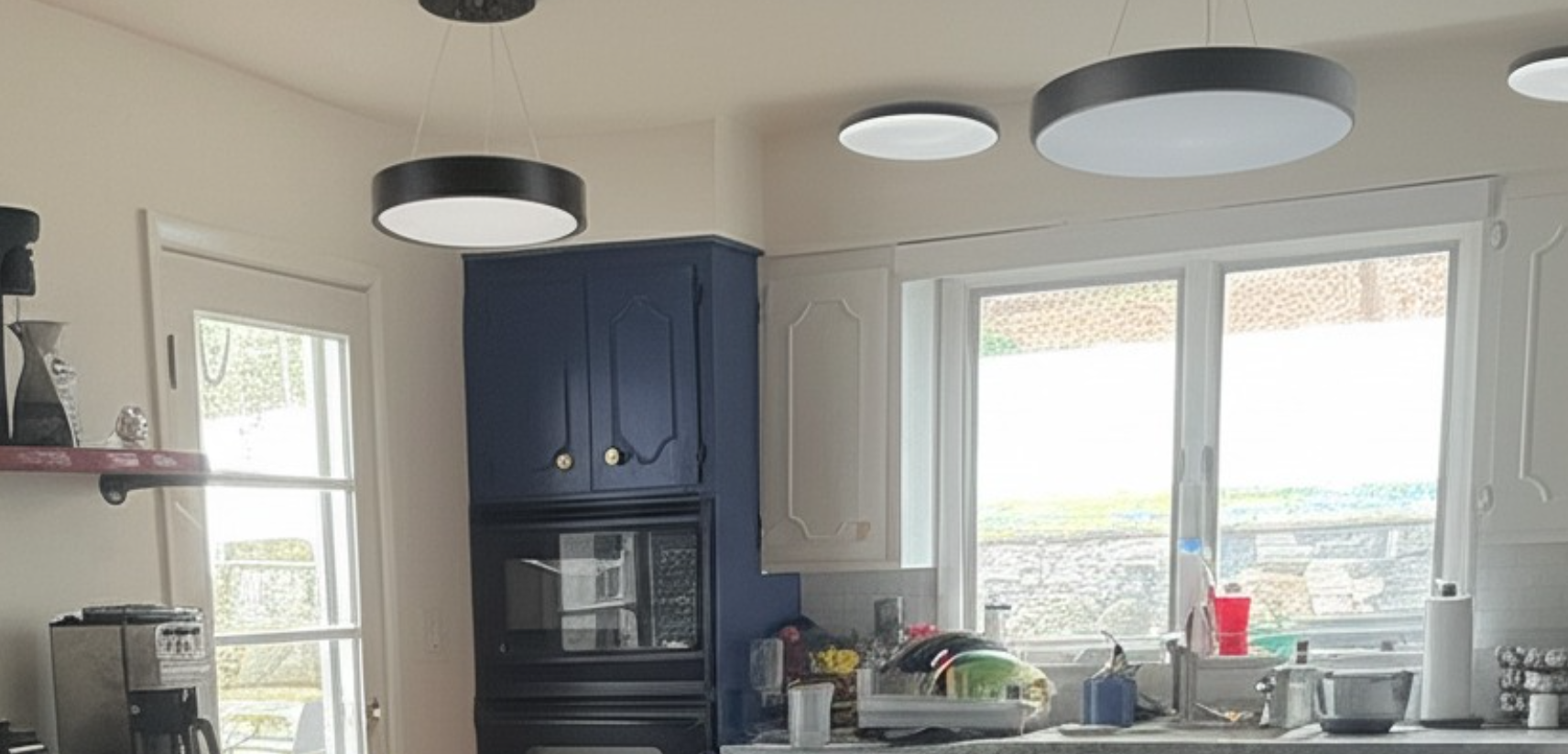
這就是 Gemini 的威力!
從解讀影片、生成原生圖片,到以 Google 搜尋為基礎提供真實資訊,這些都是採用 Gemini 技術才能建構的功能。
您可以在 AI Studio 中取得這個原型和 API 金鑰,並運用 Vertex AI ADK 的強大功能,將原型擴展為完整的代理程式應用程式。
4. 設定 ADK
現在請前往「開始前」一節中啟動的 Cloud Shell 終端機:
- 建立及啟動虛擬環境 (建議)
在 Cloud Shell 終端機中建立虛擬環境:
python -m venv .venv
啟動虛擬環境:
source .venv/bin/activate
- 安裝 ADK
pip install google-adk
5. 專案結構
- 在 Cloud Shell 終端機中,於所需專案位置為代理程式應用程式建立根目錄:
mkdir agentic-apps
- 在主要目錄中,為目前的專案建立一個專屬資料夾:
mkdir renovation-agent
- 前往 Cloud Shell 編輯器,建立下列檔案 (一開始為空白),藉此建立專案結構:
renovation-agent/
        __init__.py
        agent.py
        requirements.txt
        .env
6. 原始碼
- 前往「init.py」,並更新為下列內容:
from . import agent
- 前往 agent.py,並使用下列路徑中的內容更新檔案:
在 agent.py 中,我們會匯入必要依附元件、從 .env 檔案擷取設定參數,並定義 root_agent,該 root_agent 會產生提案文件並儲存在 Cloud Storage Bucket 中。如要執行 Cloud Storage 步驟,我們會使用名為 store_pdf 的工具。
注意:目前 PDF 檔案尚未經過格式化!根據社群開發人員的 PR,以下程式碼片段已納入此處 [未經測試],歡迎在 store_pdf 方法中採用:
doc = SimpleDocTemplate(
        pdf_buffer,
        pagesize=letter,
        rightMargin=0.75 * inch,
        leftMargin=0.75 * inch,
        topMargin=0.75 * inch,
        bottomMargin=0.75 * inch
    )

    styles = getSampleStyleSheet()
    story = []

    # --- CUSTOM STYLES FOR HEADERS ---
    # Define a new style for section headers
    styles.add(ParagraphStyle(name='SectionHeader',
                              parent=styles['Normal'],
                              fontName='Helvetica-Bold', # Make it bolder
                              fontSize=14,               # Make it slightly larger
                              leading=16,                # Line spacing
                              spaceAfter=0.15 * inch,    # Space after the header
                              spaceBefore=0.25 * inch,   # Space before the header
                              textColor=black            # Ensure color is bright/black (default is usually black, but explicit is good)
                             ))

    # Define a style for the main document title
    styles.add(ParagraphStyle(name='DocumentTitle',
                              parent=styles['Normal'],
                              fontName='Helvetica-Bold',
                              fontSize=20,
                              leading=24,
                              spaceAfter=0.25 * inch,
                              alignment=TA_CENTER, # Center align the title
                              textColor=black
                             ))
    # ---------------------------------

    paragraphs_raw = pdf_text.split('\n\n')

    # Heuristic for the garbled line issue (as before, temporary)
    if paragraphs_raw and len(paragraphs_raw[-1]) < 50 and any(char in paragraphs_raw[-1] for char in ['io', 'og', 'al', 'op']):
         logger.warning("Detected potentially garbled last paragraph. Attempting to trim/omit.")
         paragraphs_raw[-1] = "11. Entire Agreement:\nThis proposal constitutes the entire agreement between the parties and supersedes all prior discussions and agreements."


    for i, para_text in enumerate(paragraphs_raw):
        para_text = para_text.strip()
        if not para_text:
            continue

        # Special handling for the main document title (PROPOSAL DOCUMENT)
        if i == 0 and "PROPOSAL DOCUMENT" in para_text.upper():
            p = Paragraph("PROPOSAL DOCUMENT", styles['DocumentTitle'])
            story.append(p)
            story.append(Spacer(1, 0.15 * inch)) # Add space after the title
            # Skip the rest of this initial block if it's just the title
            remaining_text_lines = para_text.splitlines()[1:]
            if remaining_text_lines:
                formatted_text = "<br/>".join(remaining_text_lines)
                p = Paragraph(formatted_text, styles['Normal'])
                story.append(p)
                story.append(Spacer(1, 0.1 * inch))
            continue # Move to the next paragraph

        # Check if the paragraph looks like a section header (e.g., starts with a number and dot or just bold text)
        # This is a heuristic and might need fine-tuning based on actual proposal content variability.
        is_section_header = False
        # Check for numbered sections (e.g., "1. Scope of Work:")
        if para_text.startswith(('1.', '2.', '3.', '4.', '5.', '6.', '7.', '8.', '9.', '10.', '11.')):
            is_section_header = True
        # Check for Exhibit headers (e.g., "Exhibit A: Cabinet Design") or Roman numeral headings
        elif para_text.startswith(('Exhibit ', 'I.', 'II.', 'III.', 'IV.', 'V.', 'VI.', 'VII.')):
            is_section_header = True
        # Check for specific known headers
        elif para_text.strip().upper() in ["IN WITNESS WHEREOF,", "EXHIBITS:"]:
            is_section_header = True


        if is_section_header:
            p = Paragraph(para_text, styles['SectionHeader'])
            story.append(p)
            # No additional Spacer here, as SectionHeader style has spaceAfter
        else:
            formatted_text = para_text.replace('\n', '<br/>')
            p = Paragraph(formatted_text, styles['Normal'])
            story.append(p)
            story.append(Spacer(1, 0.1 * inch)) # Standard space after body paragraphs

    doc.build(story)

    pdf_buffer.seek(0)

    # Upload the PDF to GCS
    storage_client = storage.Client()
    bucket = storage_client.bucket(STORAGE_BUCKET)
    blob = bucket.blob(PROPOSAL_DOCUMENT_FILE_NAME)

    blob.upload_from_file(pdf_buffer, content_type="application/pdf")

    logger.info(f"Successfully uploaded PDF to gs://{STORAGE_BUCKET}/{PROPOSAL_DOCUMENT_FILE_NAME}")

except Exception as e:
    logger.error(f"Error writing text to PDF and uploading: {e}")
    raise
finally:
    if 'pdf_buffer' in locals():
        pdf_buffer.close()
return "Successfully uploaded PDF to GCS!!"
- 確認您有 Cloud Storage bucket
這是用來儲存代理程式產生的提案文件。建立該資料夾並提供存取權,讓使用 Vertex AI 建立的代理系統可以存取。做法如下:
https://cloud.google.com/storage/docs/creating-buckets#console
將值區命名為「next-demo-store」。如果命名為其他名稱,請記得更新 .env 檔案中的 STORAGE_BUCKET 值 (在「設定環境變數」步驟中)。
- 如要設定 bucket 的存取權,請前往 Cloud Storage 控制台和 Storage Bucket (在本例中,bucket 名稱為「next-demo-storage」:https://console.cloud.google.com/storage/browser/next-demo-storage)。
依序前往「權限」->「查看主體」->「授予存取權」。將主體選取為「allUsers」,角色選取為「Storage 物件使用者」。
Make sure to not enable "prevent public access". Since this is a demo/study application we are going with a public bucket. Remember to configure permission settings appropriately when you are building your application.
- 建立依附元件清單
在 requirements.txt 中列出所有依附元件。您可以從 repo 複製這項資訊。
單一代理程式系統原始碼說明
agent.py 檔案使用 Agent Development Kit (ADK) 定義廚房改造多代理系統的結構和行為。以下是主要元件:
服務專員定義
根代理程式 (自動化調度管理工具):proposal_agent
root_agent 會自動調度管理這個單一代理系統。接收初始裝修要求,並根據要求需求判斷要叫用哪些工具。
接著,root_agent 會收集工具的回覆,並合併這些回覆,為使用者提供完整的回覆。在本例中,我們只有一個工具「store_pdf」。
7. 資料流程與重要概念
使用者透過 ADK 介面 (終端機或網頁 UI) 發出要求。
- 要求會由 root_agent 接收。
- root_agent 會分析要求,並視需要將要求轉送至工具。
- 「store_pdf」工具的用途是將修訂後的文字內容寫入 PDF 檔案,然後上傳至 Google Cloud Storage。
- 然後將回覆傳回給 root_agent。
- root_agent 會合併回覆,並向使用者提供最終輸出內容。
大型語言模型 (LLM)
這些代理會大量運用 LLM 生成文字、回答問題及執行推理工作。LLM 是代理程式的「大腦」,可瞭解及回應使用者要求。我們在這個應用程式中使用 Gemini 2.5。
Google Cloud Storage
用於儲存產生的裝修提案文件。您必須建立值區,並授予代理程式存取該值區的必要權限。
Cloud Run (選用)
OrderingAgent 會使用 Cloud Run 函式與 AlloyDB 介接。Cloud Run 提供無伺服器環境,可執行程式碼來回應 HTTP 要求。
AlloyDB
如果您使用 OrderingAgent,則需要設定 AlloyDB 資料庫來儲存訂單資訊。
.env 檔案
.env 檔案會儲存 API 金鑰、資料庫憑證和 bucket 名稱等機密資訊。請務必妥善保管這個檔案,且不要提交至存放區。此外,也會儲存代理程式和 Google Cloud 雲端專案的設定。root_agent 或支援函式通常會從這個檔案讀取值。請確認 .env 檔案中已正確設定所有必要變數。包括 Cloud Storage bucket 名稱
8. 模型設定
代理理解使用者要求和生成回覆的能力,是由大型語言模型 (LLM) 驅動。您的代理程式需要安全地呼叫這個外部 LLM 服務,因此需要驗證憑證。如果沒有有效的驗證,LLM 服務會拒絕代理程式的要求,代理程式也無法運作。
- 從 Google AI Studio 取得 API 金鑰。
- 在下一個步驟中設定 .env 檔案時,請將
<<your API KEY>>換成實際的 API 金鑰值。
9. 設定環境變數
- 在這個 repo 的範本 .env 檔案中,設定參數的值。以我的情況來說,.env 包含下列變數:
GOOGLE_GENAI_USE_VERTEXAI=FALSE
GOOGLE_API_KEY=<<your API KEY>>
GOOGLE_CLOUD_LOCATION = us-central1 <<or your region>>
GOOGLE_CLOUD_PROJECT = <<your project id>>
PROJECT_ID = <<your project id>>
GOOGLE_CLOUD_REGION=us-central1 <<or your region>>
STORAGE_BUCKET = next-demo-store <<or your storage bucket name>>
將預留位置替換為您的值。
10. 執行代理程式
- 使用終端機前往代理專案的上層目錄:
cd agentic-apps/renovation-agent
- 安裝所有依附元件
pip install -r requirements.txt
- 您可以在 Cloud Shell 終端機中執行下列指令,執行代理程式:
adk run .
- 如要在 ADK 佈建的網頁版 UI 中執行,請執行下列指令:
注意:您必須在代理程式專案資料夾「外部」執行這項指令,先跳出資料夾,再運作執行:
adk web
- 使用下列提示詞進行測試:
user>>

Hello. Generate Proposal Document for the kitchen remodel requirement in a proper format that applies to a renovation contract. Remember this text will eventually be stored as a pdf file so make sure to have the formatting appropriate. I have no other specification.
11. 結果
如要執行 adk run . 指令,結果如下所示」

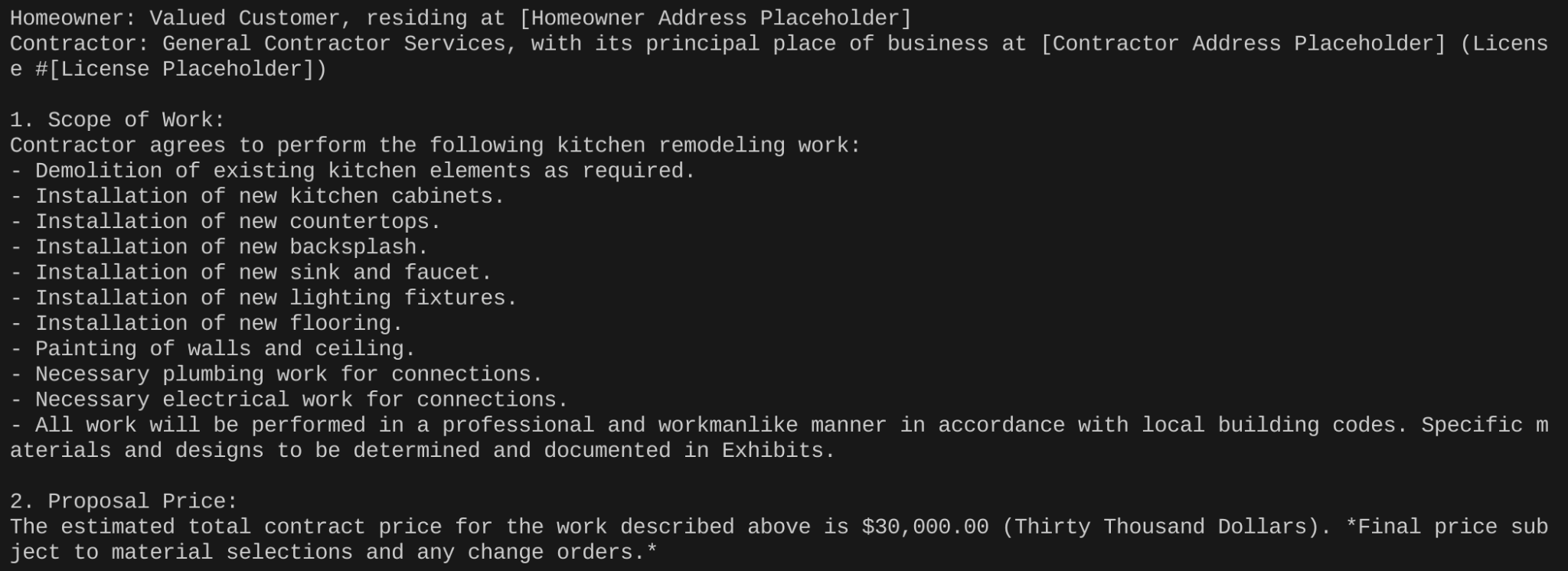
...
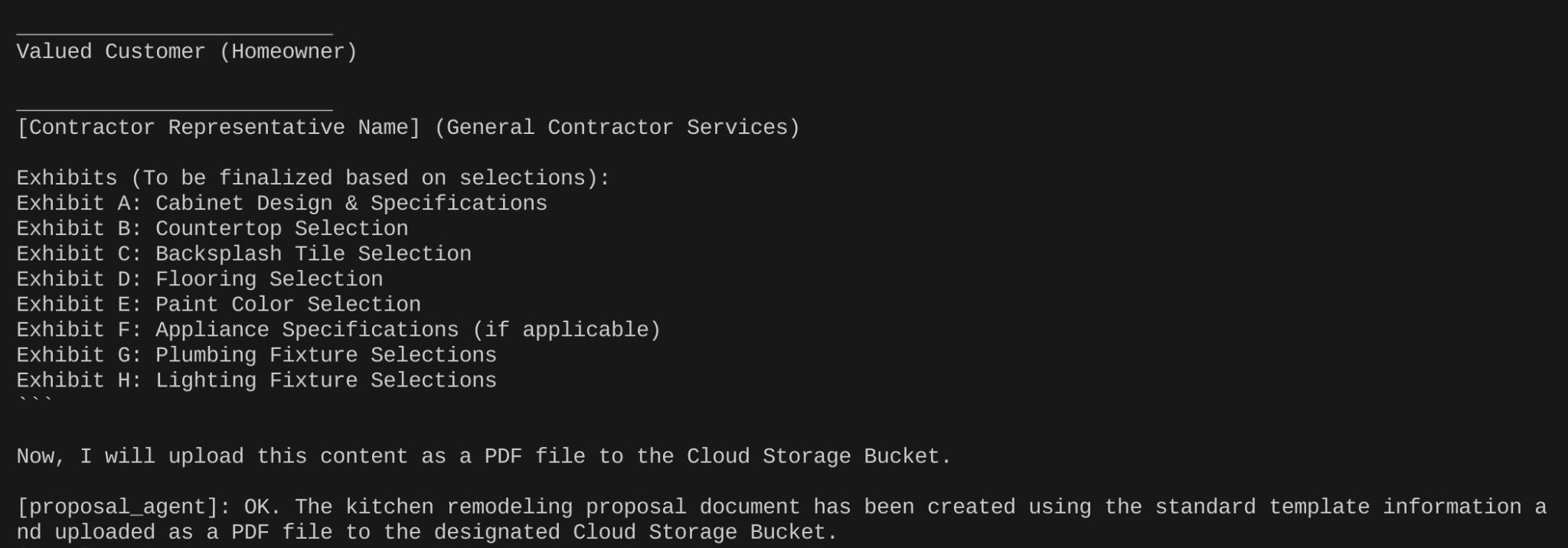
您可以驗證 Cloud Storage Bucket 中是否已建立「Renovation Proposal」文件。
12. 部署至 Cloud Run
- 在專案根資料夾中建立名為 Dockerfile 的檔案:
cd agentic-apps/renovation-agent
- 從 GitHub 存放區複製內容
https://github.com/AbiramiSukumaran/adk-renovation-single-agent/blob/main/Dockerfile
這個 Dockerfile 檔案。
- 使用下列指令部署至 Cloud Run:
adk deploy cloud_run --project=abis-345004 --region=us-central1 --service_name=renovation-agent --app_name=renovation-app --with_ui .
就是這麼簡單!部署完成後,終端機中應該會顯示端點,即可開始使用。
13. 清理
如要避免系統向您的 Google Cloud 帳戶收取本文章所用資源的費用,請按照下列步驟操作:
14. 恭喜
恭喜!您已成功使用 ADK 建立多代理應用程式,並與其互動!多代理程式系統旨在簡化廚房整修流程,自動執行提案生成、許可證檢查和訂單狀態追蹤等工作。每個代理程式都有特定角色,而 root_agent 會協調其活動,提供完整的解決方案。系統會運用大型語言模型、Google Cloud 服務和外部 API (視情況而定) 來提供功能。這裡提供產品說明文件連結。