
1. บทนำ
ในโค้ดแล็บนี้ คุณจะได้เรียนรู้วิธีการติดตั้งใช้งาน EmbeddingGemma ซึ่งเป็นโมเดลการฝังข้อความแบบหลายภาษาที่มีประสิทธิภาพใน Cloud Run โดยใช้ GPU จากนั้นคุณจะใช้บริการที่ติดตั้งใช้งานนี้เพื่อสร้างการฝังสําหรับแอปพลิเคชันการค้นหาเชิงความหมาย
โมเดลการฝังจะแปลงข้อความเป็นเวกเตอร์ตัวเลข ซึ่งแตกต่างจากโมเดลภาษาขนาดใหญ่ (LLM) แบบเดิมที่สร้างข้อความ เวกเตอร์เหล่านี้มีความสำคัญอย่างยิ่งต่อการสร้างระบบ Retrieval-Augmented Generation (RAG) ซึ่งช่วยให้คุณค้นหาเอกสารที่เกี่ยวข้องมากที่สุดสำหรับคำค้นหาของผู้ใช้ได้
สิ่งที่คุณต้องดำเนินการ
- สร้างคอนเทนเนอร์โมเดล EmbeddingGemma โดยใช้ Ollama
- ทำให้คอนเทนเนอร์ใช้งานได้กับ Cloud Run ที่มีการเร่งด้วย GPU
- ทดสอบโมเดลที่ใช้งานจริงโดยการสร้างการฝังสำหรับข้อความตัวอย่าง
- สร้างระบบการค้นหาเชิงความหมายที่มีน้ำหนักเบาโดยใช้บริการที่ติดตั้งใช้งาน
สิ่งที่คุณต้องมี
- โปรเจ็กต์ Google Cloud ที่เปิดใช้การเรียกเก็บเงิน
- มีความคุ้นเคยกับ Docker และบรรทัดคำสั่งในระดับพื้นฐาน
2. ก่อนเริ่มต้น
การตั้งค่าโปรเจ็กต์
- หากยังไม่มีบัญชี Google คุณต้องสร้างบัญชี Google
- ใช้บัญชีส่วนตัวแทนบัญชีงานหรือบัญชีโรงเรียน บัญชีงานและบัญชีโรงเรียนอาจมีข้อจำกัดที่ทำให้คุณเปิดใช้ API ที่จำเป็นสำหรับ Lab นี้ไม่ได้
- ลงชื่อเข้าใช้ Google Cloud Console
- เปิดใช้การเรียกเก็บเงินใน Cloud Console
- การทำ Lab นี้ควรมีค่าใช้จ่ายน้อยกว่า $1 USD ในทรัพยากรระบบคลาวด์
- คุณสามารถทำตามขั้นตอนที่ส่วนท้ายของแล็บนี้เพื่อลบทรัพยากรเพื่อหลีกเลี่ยงการเรียกเก็บเงินเพิ่มเติม
- ผู้ใช้ใหม่มีสิทธิ์ใช้ช่วงทดลองใช้ฟรีมูลค่า$300 USD
- สร้างโปรเจ็กต์ใหม่หรือเลือกใช้โปรเจ็กต์ที่มีอยู่ซ้ำ
- หากเห็นข้อผิดพลาดเกี่ยวกับโควต้าโปรเจ็กต์ ให้ใช้โปรเจ็กต์ที่มีอยู่ซ้ำหรือลบโปรเจ็กต์ที่มีอยู่เพื่อสร้างโปรเจ็กต์ใหม่
เริ่มต้น Cloud Shell
Cloud Shell คือสภาพแวดล้อมบรรทัดคำสั่งที่ทำงานใน Google Cloud ซึ่งโหลดเครื่องมือที่จำเป็นไว้ล่วงหน้า
- คลิกเปิดใช้งาน Cloud Shell ที่ด้านบนของคอนโซล Google Cloud
- เมื่อเชื่อมต่อกับ Cloud Shell แล้ว ให้ยืนยันการตรวจสอบสิทธิ์โดยทำดังนี้
gcloud auth list - ตรวจสอบว่าได้เลือกโปรเจ็กต์แล้ว
gcloud config get project - ตั้งค่าหากจำเป็น
gcloud config set project <YOUR_PROJECT_ID>
เปิดใช้ API
เรียกใช้คำสั่งนี้เพื่อเปิดใช้ API ที่จำเป็นทั้งหมด
gcloud services enable \
  run.googleapis.com \
  artifactregistry.googleapis.com \
  cloudbuild.googleapis.com
3. สร้างคอนเทนเนอร์ของโมเดล
หากต้องการเรียกใช้ EmbeddingGemma แบบไม่ใช้เซิร์ฟเวอร์ เราต้องแพ็กเกจเป็นคอนเทนเนอร์ เราจะใช้ Ollama ซึ่งเป็นเฟรมเวิร์กน้ำหนักเบาสำหรับเรียกใช้ LLM และ Docker
สร้าง Dockerfile
ใน Cloud Shell ให้สร้างไดเรกทอรีใหม่สำหรับโปรเจ็กต์และไปที่ไดเรกทอรีนั้น
mkdir embedding-gemma-codelab
cd embedding-gemma-codelab
สร้างไฟล์ชื่อ Dockerfile ที่มีเนื้อหาต่อไปนี้
FROM ollama/ollama:latest

# Listen on all interfaces, port 8080
ENV OLLAMA_HOST=0.0.0.0:8080

# Store model weight files in /models
ENV OLLAMA_MODELS=/models

# Reduce logging verbosity
ENV OLLAMA_DEBUG=false

# Never unload model weights from the GPU
ENV OLLAMA_KEEP_ALIVE=-1

# Store the model weights in the container image
ENV MODEL=embeddinggemma:latest
RUN ollama serve & sleep 5 && ollama pull $MODEL

# Start Ollama
ENTRYPOINT ["ollama", "serve"]
Dockerfile นี้จะทำสิ่งต่อไปนี้
- เริ่มต้นจากอิมเมจฐาน Ollama อย่างเป็นทางการ
- กำหนดค่า Ollama ให้รับฟังบนพอร์ต 8080 (ค่าเริ่มต้นของ Cloud Run)
- คำสั่ง
RUNจะเริ่มเซิร์ฟเวอร์ollamaและดาวน์โหลดโมเดลembeddinggemmaในระหว่างกระบวนการบิลด์เพื่อให้โมเดลอยู่ในอิมเมจ - ตั้งค่า
OLLAMA_KEEP_ALIVE=-1เพื่อให้มั่นใจว่าโมเดลจะยังคงโหลดอยู่ในหน่วยความจำ GPU สำหรับคำขอที่ตามมาที่เร็วขึ้น
4. สร้างและติดตั้งใช้งาน
เราจะใช้การทำให้ใช้งานได้จากแหล่งที่มาของ Cloud Run เพื่อสร้างและทำให้คอนเทนเนอร์ใช้งานได้ในขั้นตอนเดียว คำสั่งนี้จะสร้างอิมเมจโดยใช้ Cloud Build จัดเก็บไว้ใน Artifact Registry และทำให้ใช้งานได้กับ Cloud Run
เรียกใช้คำสั่งต่อไปนี้เพื่อติดตั้งใช้งาน
gcloud run deploy embedding-gemma \
  --source . \
  --region europe-west1 \
  --concurrency 4 \
  --cpu 8 \
  --set-env-vars OLLAMA_NUM_PARALLEL=4 \
  --gpu 1 \
  --gpu-type nvidia-l4 \
  --max-instances 1 \
  --memory 32Gi \
  --no-allow-unauthenticated \
  --no-cpu-throttling \
  --no-gpu-zonal-redundancy \
  --timeout=600 \
  --labels dev-tutorial=codelab-embedding-gemma
ทำความเข้าใจการกำหนดค่า
--source .ระบุไดเรกทอรีปัจจุบันเป็นแหล่งที่มาสำหรับการสร้าง--region europe-west1เราใช้ภูมิภาคที่รองรับ GPU ใน Cloud Run--concurrency 4จะได้รับการตั้งค่าให้ตรงกับค่าของตัวแปรสภาพแวดล้อม OLLAMA_NUM_PARALLEL--gpu 1ที่มี--gpu-type nvidia-l4จะกำหนด GPU ของ NVIDIA L4 จำนวน 1 รายการให้กับอินสแตนซ์ Cloud Run ทุกรายการในบริการ--max-instances 1ระบุจำนวนอินสแตนซ์สูงสุดที่จะปรับขนาด โดยต้องเท่ากับหรือต่ำกว่าโควต้า GPU ของ NVIDIA L4 ของโปรเจ็กต์--no-allow-unauthenticatedจำกัดการเข้าถึงบริการโดยไม่ต้องมีการตรวจสอบสิทธิ์ การทำให้บริการเป็นแบบส่วนตัวช่วยให้คุณใช้การตรวจสอบสิทธิ์ Identity and Access Management (IAM) ในตัวของ Cloud Run สำหรับการสื่อสารระหว่างบริการได้- ต้องใช้
--no-cpu-throttlingเพื่อเปิดใช้ GPU --no-gpu-zonal-redundancyตั้งค่าตัวเลือกความซ้ำซ้อนระดับโซนตามข้อกำหนดการล้มเหลวระดับโซนและโควต้าที่ใช้ได้
ข้อควรพิจารณาเกี่ยวกับภูมิภาค
GPU ใน Cloud Run พร้อมให้บริการในบางภูมิภาค คุณตรวจสอบภูมิภาคที่รองรับได้ในเอกสารประกอบ
เอาต์พุตการติดตั้งใช้งาน
หลังจากนั้นไม่กี่นาที การติดตั้งใช้งานจะเสร็จสมบูรณ์และคุณจะเห็นข้อความต่อไปนี้
Service [embedding-gemma] revision [embedding-gemma-12345-abc] has been deployed and is serving 100 percent of traffic.
Service URL: https://embedding-gemma-123456789012.europe-west1.run.app
5. ทดสอบการทำให้ใช้งานได้
เนื่องจากเราได้ติดตั้งใช้งานบริการด้วย --no-allow-unauthenticated เราจึงไม่สามารถ curl URL สาธารณะได้ ก่อนอื่นเราต้องให้สิทธิ์ตัวเองในการเข้าถึงบริการและใช้โทเค็นการตรวจสอบสิทธิ์ในคำขอ
- ให้สิทธิ์บัญชีผู้ใช้ในการเรียกใช้บริการโดยทำดังนี้
gcloud projects add-iam-policy-binding $GOOGLE_CLOUD_PROJECT \ --member=user:$(gcloud config get-value account) \ --role='roles/run.invoker' - บันทึกข้อมูลเข้าสู่ระบบ Google Cloud และหมายเลขโปรเจ็กต์ในตัวแปรสภาพแวดล้อมเพื่อใช้ในคำขอ
export PROJECT_NUMBER=$(gcloud projects describe $GOOGLE_CLOUD_PROJECT --format="value(projectNumber)") export ID_TOKEN=$(gcloud auth print-identity-token) - เรียกใช้คำสั่งต่อไปนี้เพื่อสร้างการฝังสำหรับ "ข้อความตัวอย่าง"
curl -X POST "https://embedding-gemma-$PROJECT_NUMBER.europe-west1.run.app/api/embed" \
    -H "Authorization: Bearer $ID_TOKEN" \
    -H "Content-Type: application/json" \
    -d '{
        "model": "embeddinggemma",
        "input": "Sample text"
    }'
คุณควรเห็นการตอบกลับเป็น JSON ที่มีเวกเตอร์ (รายการตัวเลขยาว) ในฟิลด์ embedding การดำเนินการนี้เป็นการยืนยันว่าโมเดลการฝังที่ใช้ GPU แบบไร้เซิร์ฟเวอร์ทำงานได้
คำตอบจะมีลักษณะคล้ายกับตัวอย่างต่อไปนี้ 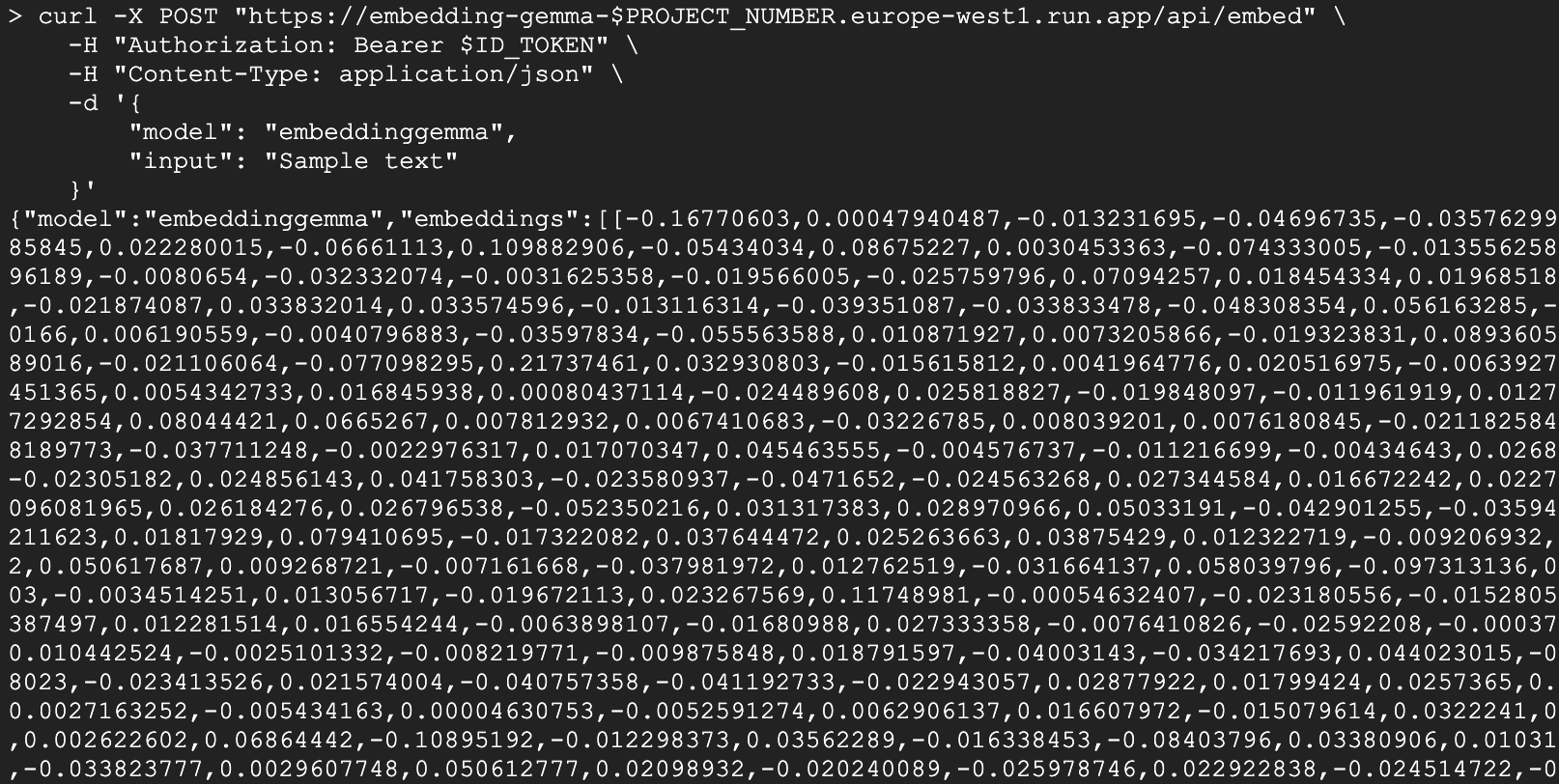
ไคลเอ็นต์ Python
นอกจากนี้ คุณยังใช้ Python เพื่อโต้ตอบกับบริการได้ด้วย สร้างไฟล์ชื่อ test_client.py:
import urllib.request
import urllib.parse
import json
import os

# 1. Setup the URL and Payload
url = f"https://embedding-gemma-{os.environ['PROJECT_NUMBER']}.europe-west1.run.app/api/embed"
payload = {
    "model": "embeddinggemma",
    "input": "Sample text"
}

# 2. Create the Request object
# Note: Providing 'data' automatically makes this a POST request
req = urllib.request.Request(
    url,
    data=json.dumps(payload).encode("utf-8"),
    headers={
        "Authorization": f"Bearer {os.environ['ID_TOKEN']}",
        "Content-Type": "application/json"
    }
)

# 3. Execute and print the response
response = urllib.request.urlopen(req)
result = json.loads(response.read().decode("utf-8"))
print(result)
เรียกใช้
python test_client.py
6. สร้างแอปพลิเคชันการค้นหาเชิงความหมาย
ตอนนี้เรามีบริการฝังที่ใช้งานได้แล้ว มาสร้างแอปพลิเคชัน Semantic Search แบบง่ายๆ กัน เราจะใช้การฝังที่สร้างขึ้นเพื่อค้นหาเอกสารที่เกี่ยวข้องมากที่สุดสำหรับคำค้นหาที่ระบุ
แท็กเริ่มการทำงาน
เราจะใช้ chromadb เป็นฐานข้อมูลเวกเตอร์และไลบรารีไคลเอ็นต์ ollama
uv init semantic-search --description "Semantic Search Application"
cd semantic-search
uv add chromadb ollama
สร้างแอปพลิเคชันการค้นหา
สร้างไฟล์ชื่อ semantic_search.py ด้วยโค้ดต่อไปนี้
import ollama
import chromadb
import os

# 1. Define our knowledge base
documents = [
    "Poland is a country located in Central Europe.",
    "The capital and largest city of Poland is Warsaw.",
    "Poland's official language is Polish, which is a West Slavic language.",
    "Marie Curie, the pioneering scientist who conducted groundbreaking research on radioactivity, was born in Warsaw, Poland.",
    "Poland is famous for its traditional dish called pierogi, which are filled dumplings.",
    "The Białowieża Forest in Poland is one of the last and largest remaining parts of the immense primeval forest that once stretched across the European Plain.",
]

print("Initializing Vector Database...")
client = chromadb.Client()
collection = client.create_collection(name="docs")

# Configure the client to point to our Cloud Run proxy
ollama_client = ollama.Client(
    host=f"https://embedding-gemma-{os.environ['PROJECT_NUMBER']}.europe-west1.run.app",
    headers={'Authorization': 'Bearer ' + os.environ['ID_TOKEN']}
)

print("Generating embeddings and indexing documents...")
# 2. Store each document in the vector database
for i, d in enumerate(documents):
    # This calls our Cloud Run service to get the embedding
    response = ollama_client.embed(model="embeddinggemma", input=d)
    embeddings = response["embeddings"]
    collection.add(ids=[str(i)], embeddings=embeddings, documents=[d])

print("Indexing complete.\n")

# 3. Perform a Semantic Search
question = "What is Poland's official language?"
print(f"Query: {question}")

# Generate an embedding for the question
response = ollama_client.embed(model="embeddinggemma", input=question)

# Query the database for the most similar document
results = collection.query(
    query_embeddings=[response["embeddings"][0]],
    n_results=1
)

best_match = results["documents"][0][0]
print(f"Best Match Document: {best_match}")
เรียกใช้แอปพลิเคชัน
เรียกใช้สคริปต์
uv run semantic_search.py
คุณควรเห็นเอาต์พุตในลักษณะนี้
Initializing Vector Database...
Generating embeddings and indexing documents...
Indexing complete.

Query: What is Poland's official language?
Best Match Document: Poland's official language is Polish, which is a West Slavic language.
สคริปต์นี้แสดงให้เห็นถึงหัวใจสำคัญของระบบ RAG นั่นคือการใช้บริการ EmbeddingGemma แบบไร้เซิร์ฟเวอร์เพื่อแปลงทั้งเอกสารและคำค้นหาเป็นเวกเตอร์ ซึ่งช่วยให้คุณค้นหาข้อมูลที่จำเป็นในการตอบคำถามของผู้ใช้ได้อย่างแม่นยำ
7. ล้างข้อมูล
โปรดลบทรัพยากรที่สร้างขึ้นระหว่างการทำ Codelab นี้เพื่อหลีกเลี่ยงการเรียกเก็บเงินอย่างต่อเนื่องในบัญชี Google Cloud
ลบบริการ Cloud Run
gcloud run services delete embedding-gemma --region europe-west1 --quiet
ลบอิมเมจคอนเทนเนอร์
gcloud artifacts docker images delete \
    europe-west1-docker.pkg.dev/${GOOGLE_CLOUD_PROJECT}/cloud-run-source-deploy/embedding-gemma \
    --quiet
8. ขอแสดงความยินดี
ยินดีด้วย คุณทำให้ EmbeddingGemma ใช้งานได้บน Cloud Run ด้วย GPU และใช้เพื่อขับเคลื่อนแอปพลิเคชันการค้นหาเชิงความหมายเรียบร้อยแล้ว
ตอนนี้คุณมีรากฐานแบบ Serverless ที่ปรับขนาดได้สำหรับการสร้างแอปพลิเคชัน AI ที่ต้องทำความเข้าใจความหมายของข้อความแล้ว
สิ่งที่คุณได้เรียนรู้
- วิธีสร้างคอนเทนเนอร์โมเดล Ollama ด้วย Docker
- วิธีทำให้บริการที่เปิดใช้ GPU ใช้งานได้ใน Cloud Run
- วิธีใช้โมเดลที่ใช้งานจริงสำหรับการค้นหาเชิงความหมาย (RAG)
ขั้นตอนถัดไป
- สำรวจโมเดลอื่นๆ ในตระกูล Gemma
- ดูข้อมูลเพิ่มเติมเกี่ยวกับ GPU ของ Cloud Run
- ดูCodelab ของ Cloud Run อื่นๆ
- สร้างไปป์ไลน์ RAG แบบเต็มโดยเชื่อมต่อขั้นตอนการดึงข้อมูลนี้กับโมเดล Generative