
1. 概览
Document AI 是什么?
Document AI API 是一种文档理解解决方案,可以提取文档、电子邮件等非结构化数据,从而让用户更容易理解、分析和使用这些数据。Document AI API 通过内容分类、实体提取、高级搜索等功能,实现对数据的结构化处理。
在本教程中,您将重点学习如何将 Document AI API 与 Node.js 搭配使用。本教程演示了如何解析简单的医疗信息采集表单。
您将学习的内容
- 如何启用 Document AI API
- 如何对 API 请求进行身份验证
- 如何安装 Node.js 版客户端库
- 如何解析扫描表单中的数据
所需条件
调查问卷
您将如何使用本教程?
您如何评价自己在 Node.js 方面的经验水平?
您如何评价自己在使用 Google Cloud 服务方面的经验水平?
2. 设置和要求
自定进度的环境设置


请记住项目 ID,它是所有 Google Cloud 项目中的唯一名称。(上述名称已被占用,您无法使用,抱歉!)您必须稍后将此 ID 作为 PROJECT_ID 提供。
- 接下来,您必须在 Cloud 控制台中启用结算功能才能使用 Google Cloud 资源。
请务必按照“清理”部分中的说明操作。此部分建议您如何关停资源,以免产生超出本教程范围的费用。Google Cloud 的新用户符合参与 $300 USD 免费试用计划的条件。
启动 Cloud Shell
虽然您可以从笔记本电脑远程操作 Google Cloud,但此 Codelab 使用 Google Cloud Shell,这是一个在 Cloud 中运行的命令行环境。
激活 Cloud Shell
- 在 Cloud Console 中,点击激活 Cloud Shell
。

如果您以前从未启动过 Cloud Shell,将看到一个中间屏幕(在折叠下面),描述它是什么。如果是这种情况,请点击继续(您将永远不会再看到它)。一次性屏幕如下所示:
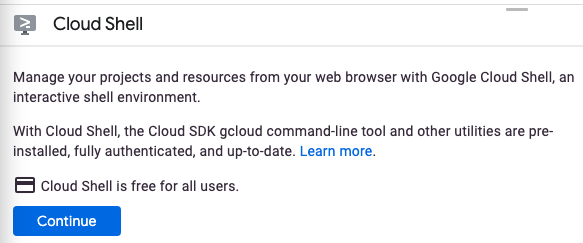
预配和连接到 Cloud Shell 只需花几分钟时间。

Cloud Shell 可让您通过终端访问托管在云端的虚拟机。该虚拟机包含您需要的所有开发工具。它提供了一个持久的 5GB 主目录,并且在 Google Cloud 中运行,大大增强了网络性能和身份验证。只需使用一个浏览器或 Google Chromebook 即可完成本 Codelab 中的大部分(甚至全部)工作。
在连接到 Cloud Shell 后,您应该会看到自己已通过身份验证,并且相关项目已设置为您的项目 ID:
- 在 Cloud Shell 中运行以下命令以确认您已通过身份验证:
gcloud auth list
命令输出
 Credentialed Accounts
ACTIVE  ACCOUNT
*       <my_account>@<my_domain.com>

To set the active account, run:
    $ gcloud config set account `ACCOUNT`
gcloud config list project
命令输出
[core]
project = <PROJECT_ID>
如果不是上述结果,您可以使用以下命令进行设置:
gcloud config set project <PROJECT_ID>
命令输出
Updated property [core/project].
3. 启用 Cloud Document AI API
您必须先启用 Document AI API,然后才能开始使用 Document AI。在浏览器中打开 Cloud 控制台。
- 依次点击导航菜单 ☰ > API 和服务 > 库。

- 搜索“Document AI API”,然后点击启用,以便在您的 Google Cloud 项目中使用该 API
4. 创建并测试处理器
您必须先创建一个表单解析器处理器实例,以便在本教程的 Document AI Platform 中使用。
- 在控制台中,导航到 Document AI Platform 概览
- 点击创建处理器,然后选择表单解析器

- 指定处理器的名称,然后从列表中选择您的地区。
- 点击创建以创建处理器。
- 复制您的处理器 ID。您稍后在代码中会用到该 ID。
(可选)您可以在控制台中上传文档来测试所创建的处理器。点击 Upload Document(上传文档),然后选择要解析的表单。如果您没有可用的表单,可以下载并使用此表单示例。

输出应如下所示:
5. 对 API 请求进行身份验证
如需向 Document AI API 发出请求,您必须使用服务账号。服务账号属于您的项目,Google 客户端 Node.js 库会使用它来发出 API 请求。与其他用户账号一样,服务账号也通过邮箱表示。在本部分中,您将使用 Cloud SDK 创建服务账号,然后创建该服务账号进行身份验证所需的凭证。
首先,您需要使用 PROJECT_ID 设置一个环境变量,以在此 Codelab 中全程使用:
export GOOGLE_CLOUD_PROJECT=$(gcloud config get-value core/project)
接下来,使用以下命令创建一个新的服务账号来访问 Document AI API:
gcloud iam service-accounts create my-docai-sa \
  --display-name "my-docai-service-account"
接下来,创建 Node.js 代码以新服务账号身份登录所用的凭据。请使用以下命令创建这些凭据并将其保存为 JSON 文件“~/key.json”:
gcloud iam service-accounts keys create ~/key.json \
  --iam-account  my-docai-sa@${GOOGLE_CLOUD_PROJECT}.iam.gserviceaccount.com
最后,设置 GOOGLE_APPLICATION_CREDENTIALS 环境变量,供库用来查找您的凭据。如需详细了解此身份验证形式,请参阅指南。该环境变量应设为您之前创建的 JSON 凭证文件的完整路径,具体命令如下:
export GOOGLE_APPLICATION_CREDENTIALS="/path/to/key.json"
6. 下载示例表单
我们有一个示例表单,存储在我们的公开 Google Cloud Storage 示例存储分区中。使用以下命令将其下载到您的工作目录。
gsutil cp gs://cloud-samples-data/documentai/form.pdf .
使用以下命令,确认已将文件下载到 Cloud Shell:
ls -ltr form.pdf
7. 安装客户端库
接下来,在工作目录中设置代码。
初始化新的 Node.js 软件包:
npm init
安装 Document AI 客户端库:
npm install @google-cloud/documentai
8. 发出同步处理文档请求
在此步骤中,您将使用同步端点来处理文档。如需一次性处理大量文档,您还可以使用异步 API。如需详细了解如何使用 Form Parser API,请点击此处阅读指南。
创建一个 index.js 文件,并粘贴以下代码。使用处理器的信息填写适用的变量。
const { DocumentProcessorServiceClient } = require('@google-cloud/documentai').v1;
const fs = require('fs');

/**
 * Runs the sample document through Document AI to get key/value pairs and
 * confidence scores.
 */
async function processDocument(projectId, location, processorId, filePath, mimeType) {
    // Instantiates a client
    const documentaiClient = new DocumentProcessorServiceClient();

    // The full resource name of the processor, e.g.:
    // projects/project-id/locations/location/processor/processor-id
    // You must create new processors in the Cloud Console first
    const resourceName = documentaiClient.processorPath(projectId, location, processorId);

    // Read the file into memory.
    const imageFile = fs.readFileSync(filePath);

    // Convert the image data to a Buffer and base64 encode it.
    const encodedImage = Buffer.from(imageFile).toString('base64');

    // Load Binary Data into Document AI RawDocument Object
    const rawDocument = {
        content: encodedImage,
        mimeType: mimeType,
    };

    // Configure ProcessRequest Object
    const request = {
        name: resourceName,
        rawDocument: rawDocument
    };

    // Use the Document AI client to process the sample form
    const [result] = await documentaiClient.processDocument(request);

    return result.document;
}

/**
 * Run the codelab.
 */
async function main() {
    const projectId = 'YOUR_PROJECT_ID';
    const location = 'YOUR_PROJECT_LOCATION'; // Format is 'us' or 'eu'
    const processorId = 'YOUR_PROCESSOR_ID'; // Should be a Hexadecimal string

    // Supported File Types
    // https://cloud.google.com/document-ai/docs/processors-list#processor_form-parser
    filePath = 'form.pdf'; // The local file in your current working directory
    mimeType = 'application/pdf';

    const document = await processDocument(projectId, location, processorId, filePath, mimeType);
    console.log("Document Processing Complete");

    // Print the document text as one big string
    console.log(`Text: ${document.text}`);
}

main(...process.argv.slice(2)).catch(err => {
    console.error(err);
    process.exitCode = 1;
});
现在运行代码,您应该会在控制台中看到以下文本。
Text: FakeDoc M.D.
HEALTH INTAKE FORM
Please fill out the questionnaire carefully. The information you provide will be used to complete
your health profile and will be kept confidential.
Name:
Date:
Sally
Walker
DOB: 09/04/1986
Address: 24 Barney Lane City: Towalo State: NJ Zip: 07082
Email: Sally, waller@cmail.com Phone #: (906) 917-3486
Gender:
Marital Status: Single Occupation: Software Engineer
Referred By: None
Emergency Contact: Eva Walker Emergency Contact Phone: (906) 334-8926
Describe your medical concerns (symptoms, diagnoses, etc):
Runny nose, mucas in throat, weakness,
aches, chills, tired
Are you currently taking any medication? (If yes, please describe):
Vyvanse (25mg) daily for attention
在后续步骤中,您将提取结构化数据,这种数据可以更轻松地存储到数据库中或用于其他应用。
9. 提取表单键值对
现在,您可以从表单中提取键值对及其对应的置信度得分。Document 响应对象包含输入文档中的一系列页面。每个 page 对象都包含一系列表单字段及其在文本中的位置。
以下代码会遍历每个页面,并提取每个键、值和置信度分数。
将以下函数添加到您的代码中。
/**
 * Extract form data and confidence from processed document.
 */
function extractFormData(document) {
    // Extract shards from the text field
    function getText(textAnchor, document) {
        if (!textAnchor.textSegments || textAnchor.textSegments.length === 0) {
            return '';
        }

        // First shard in document doesn't have startIndex property
        const startIndex = textAnchor.textSegments[0].startIndex || 0;
        const endIndex = textAnchor.textSegments[0].endIndex;

        return document.text.substring(startIndex, endIndex);
    }

    var formData = [];

    const pages = document.pages;

    pages.forEach((page) => {
        const formFields = page.formFields;
        formFields.forEach((field) => {
            // Get the extracted field names and remove extra space from text
            const fieldName = getText(field.fieldName.textAnchor, document);
            // Confidence - How "sure" the API is that the text is correct
            const nameConfidence = field.fieldName.confidence.toFixed(4);

            const fieldValue = getText(field.fieldValue.textAnchor, document);
            const valueConfidence = field.fieldValue.confidence.toFixed(4);

            formData.push({
                fieldName: fieldName,
                fieldValue: fieldValue,
                nameConfidence: nameConfidence,
                valueConfidence: valueConfidence
            });
        });
    });

    return formData;
}
从主函数内部添加对 extractFormData() 函数的调用,并将生成的对象打印为表格。
/**
 * Run the codelab.
 */
async function main() {
    const projectId = 'YOUR_PROJECT_ID';
    const location = 'YOUR_PROJECT_LOCATION'; // Format is 'us' or 'eu'
    const processorId = 'YOUR_PROCESSOR_ID'; // Should be a Hexadecimal string

    // Supported File Types
    // https://cloud.google.com/document-ai/docs/processors-list#processor_form-parser
    filePath = 'form.pdf'; // The local file in your current working directory
    mimeType = 'application/pdf';

    const document = await processDocument(projectId, location, processorId, filePath, mimeType);
    const formData = extractFormData(document);

    console.log('\nThe following form key/value pairs were detected:');
    console.table(formData);
}
现在,运行您的代码。如果您使用的是我们的示例文档,则应看到以下输出内容:
The following form key/value pairs were detected:
┌─────────┬────────────────────────────────────────────────────────────────┬──────────────────────────────────────────────────────────────────┬────────────────┬─────────────────┐
│ (index) │                           fieldName                            │                            fieldValue                            │ nameConfidence │ valueConfidence │
├─────────┼────────────────────────────────────────────────────────────────┼──────────────────────────────────────────────────────────────────┼────────────────┼─────────────────┤
│    0    │                       'Marital Status: '                       │                            'Single '                             │    '1.0000'    │    '1.0000'     │
│    1    │                            'DOB: '                             │                          '09/04/1986\n'                          │    '0.9999'    │    '0.9999'     │
│    2    │                            'City: '                            │                            'Towalo '                             │    '0.9996'    │    '0.9996'     │
│    3    │                          'Address: '                           │                        '24 Barney Lane '                         │    '0.9994'    │    '0.9994'     │
│    4    │                        'Referred By: '                         │                             'None\n'                             │    '0.9968'    │    '0.9968'     │
│    5    │                          'Phone #: '                           │                        '(906) 917-3486\n'                        │    '0.9961'    │    '0.9961'     │
│    6    │                           'State: '                            │                              'NJ '                               │    '0.9960'    │    '0.9960'     │
│    7    │                  'Emergency Contact Phone: '                   │                        '(906) 334-8926\n'                        │    '0.9925'    │    '0.9925'     │
│    8    │                           'Name:\n'                            │                        'Sally\nWalker\n'                         │    '0.9922'    │    '0.9922'     │
│    9    │                         'Occupation: '                         │                      'Software Engineer\n'                       │    '0.9914'    │    '0.9914'     │
│   10    │                            'Zip: '                             │                            '07082\n'                             │    '0.9904'    │    '0.9904'     │
│   11    │                           'Email: '                            │                    'Sally, waller@cmail.com '                    │    '0.9681'    │    '0.9681'     │
│   12    │                     'Emergency Contact: '                      │                          'Eva Walker '                           │    '0.9430'    │    '0.9430'     │
│   13    │ 'Describe your medical concerns (symptoms, diagnoses, etc):\n' │ 'Runny nose, mucas in throat, weakness,\naches, chills, tired\n' │    '0.7817'    │    '0.7817'     │
└─────────┴────────────────────────────────────────────────────────────────┴──────────────────────────────────────────────────────────────────┴────────────────┴─────────────────┘
10. 恭喜!
恭喜您!您已成功使用 Document AI API 从一份手写表单中提取数据。我们建议您尝试使用其他表单图片。
清理
为避免因本教程中使用的资源导致您的 Google Cloud 账号产生费用,请执行以下操作:
- 在 Cloud Console 中,转到管理资源页面。
- 在项目列表中,选择您的项目,然后点击“删除”。
- 在对话框中输入项目 ID,然后点击“关停”以删除项目。