

1. 简介
在此 Codelab 中,您将学习如何将向量搜索与 Vertex AI 嵌入相结合,从而使用 AlloyDB AI。本实验是专门介绍 AlloyDB AI 功能的实验合集中的一个实验。如需了解详情,请参阅文档中的 AlloyDB AI 页面。
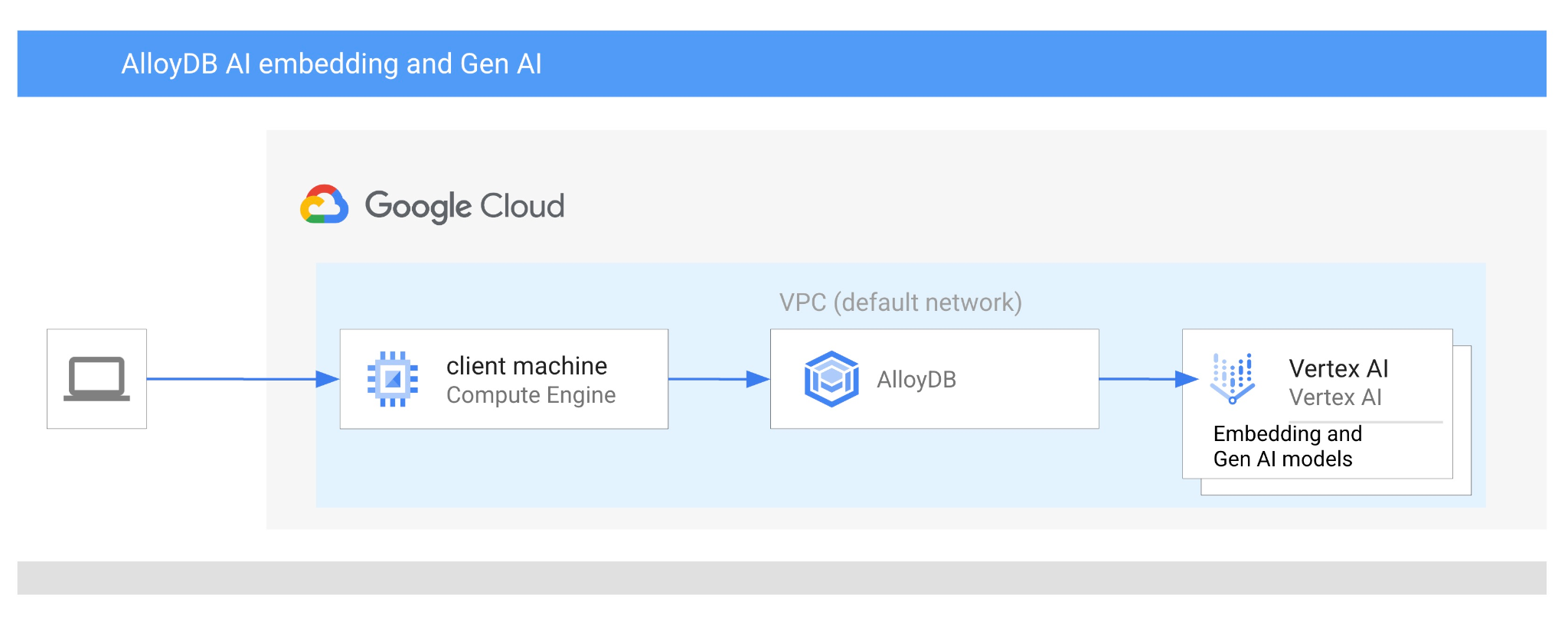
前提条件
- 对 Google Cloud 控制台有基本的了解
- 具备命令行界面和 Google Shell 方面的基本技能
学习内容
- 如何部署 AlloyDB 集群和主实例
- 如何从 Google Compute Engine 虚拟机连接到 AlloyDB
- 如何创建数据库并启用 AlloyDB AI
- 如何将数据加载到数据库中
- 如何使用 AlloyDB Studio
- 如何在 AlloyDB 中使用 Vertex AI 嵌入模型
- 如何使用 Vertex AI Studio
- 如何使用 Vertex AI 生成式模型丰富结果
- 如何使用向量索引提升性能
所需条件
- Google Cloud 账号和 Google Cloud 项目
- 网络浏览器,例如 Chrome
2. 设置和要求
项目设置
- 登录 Google Cloud 控制台。如果您还没有 Gmail 或 Google Workspace 账号,则必须创建一个。
请改用个人账号,而非工作账号或学校账号。
- 创建新项目或重复使用现有项目。如需在 Google Cloud 控制台中创建新项目,请在标题中点击“选择项目”按钮,系统随即会打开一个弹出式窗口。

在“选择项目”窗口中,按“新建项目”按钮,系统随即会打开一个用于创建新项目的对话框。

在对话框中,输入您偏好的项目名称,然后选择位置。
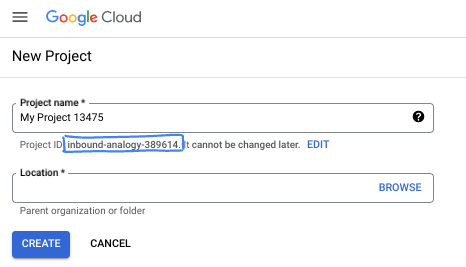
- 项目名称是此项目参与者的显示名称。Google API 不会使用项目名称,并且您可以随时更改项目名称。
- 项目 ID 在所有 Google Cloud 项目中是唯一的,并且是不可变的(一经设置便无法更改)。Google Cloud 控制台会自动生成一个唯一 ID,但您可以自定义该 ID。如果您不喜欢生成的 ID,可以生成另一个随机 ID,也可以提供自己的 ID 来检查其可用性。在大多数 Codelab 中,您都需要引用项目 ID,该 ID 通常用占位符 PROJECT_ID 标识。
- 此外,还有第三个值,即部分 API 使用的项目编号,供您参考。如需详细了解所有这三个值,请参阅文档。
启用结算功能
您可以通过以下两种方式启用结算功能。您可以使用个人结算账号,也可以按照以下步骤兑换积分。
兑换 5 美元的 Google Cloud 赠金(可选)
如需参加此研讨会,您需要拥有一个有一定信用额度的结算账号。如果您打算使用自己的结算方式,则可以跳过此步骤。
- 点击此链接,然后使用个人 Google 账号登录。
- 您会看到类似如下的内容:

- 点击点击此处访问您的积分按钮。然后,您会进入一个页面,可以在其中设置结算资料。如果您看到免费试用订阅界面,请点击“取消”,然后继续关联结算信息。
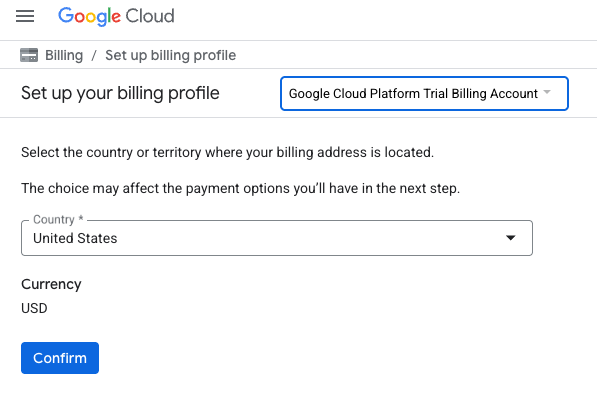
- 点击“确认”,系统会显示“您现已关联到 Google Cloud Platform 试用结算账号”。
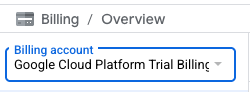
设置个人结算账号
如果您使用 Google Cloud 抵用金设置了结算,则可以跳过此步骤。
如需设置个人结算账号,请点击此处在 Cloud 控制台中启用结算功能。
注意事项:
- 完成本实验的 Cloud 资源费用应低于 3 美元。
- 您可以按照本实验结束时的步骤删除资源,以避免产生更多费用。
- 新用户符合参与 $300 USD 免费试用计划的条件。
启动 Cloud Shell
虽然可以通过笔记本电脑对 Google Cloud 进行远程操作,但在此 Codelab 中,您将使用 Google Cloud Shell,这是一个在云端运行的命令行环境。
在 Google Cloud 控制台 中,点击右上角工具栏中的 Cloud Shell 图标:

或者,您也可以先按 G,再按 S。如果您位于 Google Cloud 控制台中,或者使用此链接,此序列将激活 Cloud Shell。
预配和连接到环境应该只需要片刻时间。完成后,您应该会看到如下内容:

这个虚拟机已加载了您需要的所有开发工具。它提供了一个持久的 5 GB 主目录,并且在 Google Cloud 中运行,大大增强了网络性能和身份验证功能。您在此 Codelab 中的所有工作都可以在浏览器中完成。您无需安装任何程序。
3. 准备工作
启用 API
输出:
如需使用 AlloyDB、Compute Engine、网络服务和 Vertex AI,您需要在 Google Cloud 项目中启用它们各自的 API。
启用 API
在 Cloud Shell 的终端中,确保项目 ID 已设置:
gcloud config set project [YOUR-PROJECT-ID]
设置环境变量 PROJECT_ID:
PROJECT_ID=$(gcloud config get-value project)
启用所有必需的 API:
gcloud services enable alloydb.googleapis.com \
                       compute.googleapis.com \
                       cloudresourcemanager.googleapis.com \
                       servicenetworking.googleapis.com \
                       aiplatform.googleapis.com
预期输出
student@cloudshell:~ (test-project-001-402417)$ gcloud config set project test-project-001-402417
Updated property [core/project].
student@cloudshell:~ (test-project-001-402417)$ PROJECT_ID=$(gcloud config get-value project)
Your active configuration is: [cloudshell-14650]
student@cloudshell:~ (test-project-001-402417)$
student@cloudshell:~ (test-project-001-402417)$ gcloud services enable alloydb.googleapis.com \
                       compute.googleapis.com \
                       cloudresourcemanager.googleapis.com \
                       servicenetworking.googleapis.com \
                       aiplatform.googleapis.com
Operation "operations/acat.p2-4470404856-1f44ebd8-894e-4356-bea7-b84165a57442" finished successfully.
API 简介
- 借助 AlloyDB API (
alloydb.googleapis.com),您可以创建、管理和扩缩 AlloyDB for PostgreSQL 集群。它提供与 PostgreSQL 兼容的全代管式数据库服务,专为要求苛刻的企业事务性和分析性工作负载而设计。 - 借助 Compute Engine API (
compute.googleapis.com),您可以创建和管理虚拟机 (VM)、永久性磁盘和网络设置。它提供运行工作负载所需的核心基础设施即服务 (IaaS) 基础,并为许多托管服务托管底层基础架构。 - 借助 Cloud Resource Manager API (
cloudresourcemanager.googleapis.com),您可以以编程方式管理 Google Cloud 项目的元数据和配置。借助它,您可以整理资源、处理 Identity and Access Management (IAM) 政策,以及验证项目层次结构中的权限。 - 借助 Service Networking API (
servicenetworking.googleapis.com),您可以自动设置虚拟私有云 (VPC) 网络与 Google 的受管服务之间的专用连接。具体而言,需要为 AlloyDB 等服务建立专用 IP 访问通道,以便它们能够与其他资源安全地通信。 - Vertex AI API (
aiplatform.googleapis.com) 可让您的应用构建、部署和扩缩机器学习模型。它为所有 Google Cloud AI 服务提供统一的界面,包括访问生成式 AI 模型(例如 Gemini)和自定义模型训练。
您可以选择配置默认区域,以使用 Vertex AI 嵌入模型。详细了解 Vertex AI 的可用位置。在本示例中,我们使用的是 us-central1 区域。
gcloud config set compute/region us-central1
4. 部署 AlloyDB
在创建 AlloyDB 集群之前,我们需要在 VPC 中分配一个可用的专用 IP 范围,以供未来的 AlloyDB 实例使用。如果我们没有该服务账号,则需要创建该服务账号,并将其分配给内部 Google 服务使用,之后我们才能创建集群和实例。
创建专用 IP 范围
我们需要在 VPC 中为 AlloyDB 配置专用服务访问配置。这里假设我们的项目中有“默认”VPC 网络,它将用于所有操作。
创建专用 IP 范围:
gcloud compute addresses create psa-range \
    --global \
    --purpose=VPC_PEERING \
    --prefix-length=24 \
    --description="VPC private service access" \
    --network=default
使用分配的 IP 范围创建专用连接:
gcloud services vpc-peerings connect \
    --service=servicenetworking.googleapis.com \
    --ranges=psa-range \
    --network=default
预期的控制台输出:
student@cloudshell:~ (test-project-402417)$ gcloud compute addresses create psa-range \
    --global \
    --purpose=VPC_PEERING \
    --prefix-length=24 \
    --description="VPC private service access" \
    --network=default
Created [https://www.googleapis.com/compute/v1/projects/test-project-402417/global/addresses/psa-range].

student@cloudshell:~ (test-project-402417)$ gcloud services vpc-peerings connect \
    --service=servicenetworking.googleapis.com \
    --ranges=psa-range \
    --network=default
Operation "operations/pssn.p24-4470404856-595e209f-19b7-4669-8a71-cbd45de8ba66" finished successfully.

student@cloudshell:~ (test-project-402417)$
创建 AlloyDB 集群
在本部分中,我们将在 us-central1 区域中创建一个 AlloyDB 集群。
为 postgres 用户定义密码。您可以自行定义密码,也可以使用随机函数生成密码
export PGPASSWORD=`openssl rand -hex 12`
预期的控制台输出:
student@cloudshell:~ (test-project-402417)$ export PGPASSWORD=`openssl rand -hex 12`
请记下该 PostgreSQL 密码,以备将来使用。
echo $PGPASSWORD
您日后需要使用该密码以 postgres 用户身份连接到实例。我建议将其写下来或复制到某个地方,以便日后使用。
预期的控制台输出:
student@cloudshell:~ (test-project-402417)$ echo $PGPASSWORD
bbefbfde7601985b0dee5723
创建免费试用集群
如果您之前未使用过 AlloyDB,可以创建免费试用集群:
定义区域和 AlloyDB 集群名称。我们将使用 us-central1 区域,并将 alloydb-aip-01 作为集群名称:
export REGION=us-central1
export ADBCLUSTER=alloydb-aip-01
运行命令以创建集群:
gcloud alloydb clusters create $ADBCLUSTER \
    --password=$PGPASSWORD \
    --network=default \
    --region=$REGION \
    --subscription-type=TRIAL
预期的控制台输出:
export REGION=us-central1
export ADBCLUSTER=alloydb-aip-01
gcloud alloydb clusters create $ADBCLUSTER \
    --password=$PGPASSWORD \
    --network=default \
    --region=$REGION \
    --subscription-type=TRIAL
Operation ID: operation-1697655441138-6080235852277-9e7f04f5-2012fce4
Creating cluster...done.
在同一 Cloud Shell 会话中为集群创建 AlloyDB 主实例。如果您断开连接,则需要再次定义区域和集群名称环境变量。
gcloud alloydb instances create $ADBCLUSTER-pr \
    --instance-type=PRIMARY \
    --cpu-count=8 \
    --region=$REGION \
    --cluster=$ADBCLUSTER
预期的控制台输出:
student@cloudshell:~ (test-project-402417)$ gcloud alloydb instances create $ADBCLUSTER-pr \
    --instance-type=PRIMARY \
    --cpu-count=8 \
    --region=$REGION \
    --availability-type ZONAL \
    --cluster=$ADBCLUSTER
Operation ID: operation-1697659203545-6080315c6e8ee-391805db-25852721
Creating instance...done.
创建 AlloyDB Standard 集群
如果这不是您在项目中创建的第一个 AlloyDB 集群,请继续创建标准集群。
定义区域和 AlloyDB 集群名称。我们将使用 us-central1 区域,并将 alloydb-aip-01 作为集群名称:
export REGION=us-central1
export ADBCLUSTER=alloydb-aip-01
运行命令以创建集群:
gcloud alloydb clusters create $ADBCLUSTER \
    --password=$PGPASSWORD \
    --network=default \
    --region=$REGION
预期的控制台输出:
export REGION=us-central1
export ADBCLUSTER=alloydb-aip-01
gcloud alloydb clusters create $ADBCLUSTER \
    --password=$PGPASSWORD \
    --network=default \
    --region=$REGION
Operation ID: operation-1697655441138-6080235852277-9e7f04f5-2012fce4
Creating cluster...done.
在同一 Cloud Shell 会话中为集群创建 AlloyDB 主实例。如果您断开连接,则需要再次定义区域和集群名称环境变量。
gcloud alloydb instances create $ADBCLUSTER-pr \
    --instance-type=PRIMARY \
    --cpu-count=2 \
    --region=$REGION \
    --cluster=$ADBCLUSTER
预期的控制台输出:
student@cloudshell:~ (test-project-402417)$ gcloud alloydb instances create $ADBCLUSTER-pr \
    --instance-type=PRIMARY \
    --cpu-count=2 \
    --region=$REGION \
    --availability-type ZONAL \
    --cluster=$ADBCLUSTER
Operation ID: operation-1697659203545-6080315c6e8ee-391805db-25852721
Creating instance...done.
5. 连接到 AlloyDB
AlloyDB 是使用仅限专用连接进行部署的,因此我们需要安装了 PostgreSQL 客户端的虚拟机才能使用该数据库。
部署 GCE 虚拟机
在 AlloyDB 集群所在的区域和 VPC 中创建 GCE 虚拟机。
在 Cloud Shell 中,执行以下命令:
export ZONE=us-central1-a
gcloud compute instances create instance-1 \
    --zone=$ZONE \
    --create-disk=auto-delete=yes,boot=yes,image=projects/debian-cloud/global/images/$(gcloud compute images list --filter="family=debian-12 AND family!=debian-12-arm64" --format="value(name)") \
    --scopes=https://www.googleapis.com/auth/cloud-platform
预期的控制台输出:
student@cloudshell:~ (test-project-402417)$ export ZONE=us-central1-a
student@cloudshell:~ (test-project-402417)$ export ZONE=us-central1-a
gcloud compute instances create instance-1 \
    --zone=$ZONE \
    --create-disk=auto-delete=yes,boot=yes,image=projects/debian-cloud/global/images/$(gcloud compute images list --filter="family=debian-12 AND family!=debian-12-arm64" --format="value(name)") \
    --scopes=https://www.googleapis.com/auth/cloud-platform

Created [https://www.googleapis.com/compute/v1/projects/test-project-402417/zones/us-central1-a/instances/instance-1].
NAME: instance-1
ZONE: us-central1-a
MACHINE_TYPE: n1-standard-1
PREEMPTIBLE:
INTERNAL_IP: 10.128.0.2
EXTERNAL_IP: 34.71.192.233
STATUS: RUNNING
安装 Postgres 客户端
在已部署的虚拟机上安装 PostgreSQL 客户端软件
连接到虚拟机:
gcloud compute ssh instance-1 --zone=us-central1-a
预期的控制台输出:
student@cloudshell:~ (test-project-402417)$ gcloud compute ssh instance-1 --zone=us-central1-a
Updating project ssh metadata...working..Updated [https://www.googleapis.com/compute/v1/projects/test-project-402417].
Updating project ssh metadata...done.
Waiting for SSH key to propagate.
Warning: Permanently added 'compute.5110295539541121102' (ECDSA) to the list of known hosts.
Linux instance-1.us-central1-a.c.gleb-test-short-001-418811.internal 6.1.0-18-cloud-amd64 #1 SMP PREEMPT_DYNAMIC Debian 6.1.76-1 (2024-02-01) x86_64

The programs included with the Debian GNU/Linux system are free software;
the exact distribution terms for each program are described in the
individual files in /usr/share/doc/*/copyright.

Debian GNU/Linux comes with ABSOLUTELY NO WARRANTY, to the extent
permitted by applicable law.
student@instance-1:~$
在虚拟机内运行以下命令来安装软件:
sudo apt-get update
sudo apt-get install --yes postgresql-client
预期的控制台输出:
student@instance-1:~$ sudo apt-get update
sudo apt-get install --yes postgresql-client
Get:1 https://packages.cloud.google.com/apt google-compute-engine-bullseye-stable InRelease [5146 B]
Get:2 https://packages.cloud.google.com/apt cloud-sdk-bullseye InRelease [6406 B]
Hit:3 https://deb.debian.org/debian bullseye InRelease
Get:4 https://deb.debian.org/debian-security bullseye-security InRelease [48.4 kB]
Get:5 https://packages.cloud.google.com/apt google-compute-engine-bullseye-stable/main amd64 Packages [1930 B]
Get:6 https://deb.debian.org/debian bullseye-updates InRelease [44.1 kB]
Get:7 https://deb.debian.org/debian bullseye-backports InRelease [49.0 kB]
...redacted...
update-alternatives: using /usr/share/postgresql/13/man/man1/psql.1.gz to provide /usr/share/man/man1/psql.1.gz (psql.1.gz) in auto mode
Setting up postgresql-client (13+225) ...
Processing triggers for man-db (2.9.4-2) ...
Processing triggers for libc-bin (2.31-13+deb11u7) ...
连接到实例
使用 psql 从虚拟机连接到主实例。
在同一 Cloud Shell 标签页中,使用已打开的 SSH 会话连接到 instance-1 虚拟机。
使用记下的 AlloyDB 密码 (PGPASSWORD) 值和 AlloyDB 集群 ID 从 GCE 虚拟机连接到 AlloyDB:
export PGPASSWORD=<Noted password>
export PROJECT_ID=$(gcloud config get-value project)
export REGION=us-central1
export ADBCLUSTER=alloydb-aip-01
export INSTANCE_IP=$(gcloud alloydb instances describe $ADBCLUSTER-pr --cluster=$ADBCLUSTER --region=$REGION --format="value(ipAddress)")
psql "host=$INSTANCE_IP user=postgres sslmode=require"
预期的控制台输出:
student@instance-1:~$ export PGPASSWORD=CQhOi5OygD4ps6ty
student@instance-1:~$ ADBCLUSTER=alloydb-aip-01
student@instance-1:~$ REGION=us-central1
student@instance-1:~$ INSTANCE_IP=$(gcloud alloydb instances describe $ADBCLUSTER-pr --cluster=$ADBCLUSTER --region=$REGION --format="value(ipAddress)")
gleb@instance-1:~$ psql "host=$INSTANCE_IP user=postgres sslmode=require"
psql (15.6 (Debian 15.6-0+deb12u1), server 15.5)
SSL connection (protocol: TLSv1.3, cipher: TLS_AES_256_GCM_SHA384, compression: off)
Type "help" for help.

postgres=>
关闭 psql 会话:
exit
6. 准备数据库
我们需要创建数据库、启用 Vertex AI 集成、创建数据库对象并导入数据。
向 AlloyDB 授予必要权限
向 AlloyDB 服务代理添加 Vertex AI 权限。
使用顶部的“+”号打开另一个 Cloud Shell 标签页。
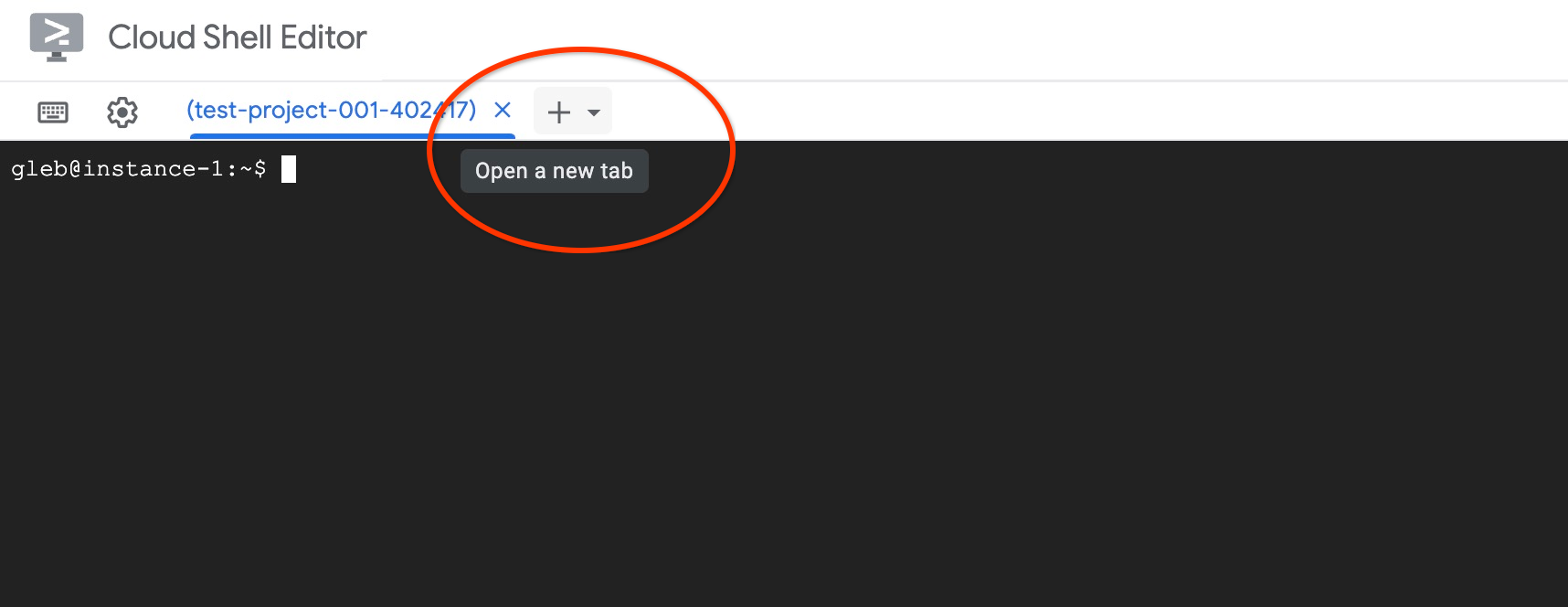
在新的 Cloud Shell 标签页中,执行以下命令:
PROJECT_ID=$(gcloud config get-value project)
gcloud projects add-iam-policy-binding $PROJECT_ID \
  --member="serviceAccount:service-$(gcloud projects describe $PROJECT_ID --format="value(projectNumber)")@gcp-sa-alloydb.iam.gserviceaccount.com" \
  --role="roles/aiplatform.user"
预期的控制台输出:
student@cloudshell:~ (test-project-001-402417)$ PROJECT_ID=$(gcloud config get-value project)
Your active configuration is: [cloudshell-11039]
student@cloudshell:~ (test-project-001-402417)$ gcloud projects add-iam-policy-binding $PROJECT_ID \
  --member="serviceAccount:service-$(gcloud projects describe $PROJECT_ID --format="value(projectNumber)")@gcp-sa-alloydb.iam.gserviceaccount.com" \
  --role="roles/aiplatform.user"
Updated IAM policy for project [test-project-001-402417].
bindings:
- members:
  - serviceAccount:service-4470404856@gcp-sa-alloydb.iam.gserviceaccount.com
  role: roles/aiplatform.user
- members:
...
etag: BwYIEbe_Z3U=
version: 1
在标签页中执行命令“exit”,关闭该标签页:
exit
创建数据库
创建数据库快速入门。
在 GCE 虚拟机会话中,执行以下命令:
创建数据库:
psql "host=$INSTANCE_IP user=postgres" -c "CREATE DATABASE quickstart_db"
预期的控制台输出:
student@instance-1:~$ psql "host=$INSTANCE_IP user=postgres" -c "CREATE DATABASE quickstart_db"
CREATE DATABASE
student@instance-1:~$
启用 Vertex AI 集成
在数据库中启用 Vertex AI 集成和 pgvector 扩展程序。
在 GCE 虚拟机中,执行以下命令:
psql "host=$INSTANCE_IP user=postgres dbname=quickstart_db" -c "CREATE EXTENSION IF NOT EXISTS google_ml_integration CASCADE"
psql "host=$INSTANCE_IP user=postgres dbname=quickstart_db" -c "CREATE EXTENSION IF NOT EXISTS vector"
预期的控制台输出:
student@instance-1:~$ psql "host=$INSTANCE_IP user=postgres dbname=quickstart_db" -c "CREATE EXTENSION IF NOT EXISTS google_ml_integration CASCADE"
psql "host=$INSTANCE_IP user=postgres dbname=quickstart_db" -c "CREATE EXTENSION IF NOT EXISTS vector"
CREATE EXTENSION
CREATE EXTENSION
student@instance-1:~$
导入数据
下载准备好的数据,然后将其导入到新数据库中。
在 GCE 虚拟机中,执行以下命令:
gcloud storage cat gs://cloud-training/gcc/gcc-tech-004/cymbal_demo_schema.sql |psql "host=$INSTANCE_IP user=postgres dbname=quickstart_db"
gcloud storage cat gs://cloud-training/gcc/gcc-tech-004/cymbal_products.csv |psql "host=$INSTANCE_IP user=postgres dbname=quickstart_db" -c "\copy cymbal_products from stdin csv header"
gcloud storage cat gs://cloud-training/gcc/gcc-tech-004/cymbal_inventory.csv |psql "host=$INSTANCE_IP user=postgres dbname=quickstart_db" -c "\copy cymbal_inventory from stdin csv header"
gcloud storage cat gs://cloud-training/gcc/gcc-tech-004/cymbal_stores.csv |psql "host=$INSTANCE_IP user=postgres dbname=quickstart_db" -c "\copy cymbal_stores from stdin csv header"
预期的控制台输出:
student@instance-1:~$ gsutil cat gs://cloud-training/gcc/gcc-tech-004/cymbal_demo_schema.sql |psql "host=$INSTANCE_IP user=postgres dbname=quickstart_db"
SET
SET
SET
SET
SET
 set_config
------------

(1 row)
SET
SET
SET
SET
SET
SET
CREATE TABLE
ALTER TABLE
CREATE TABLE
ALTER TABLE
CREATE TABLE
ALTER TABLE
CREATE TABLE
ALTER TABLE
CREATE SEQUENCE
ALTER TABLE
ALTER SEQUENCE
ALTER TABLE
ALTER TABLE
ALTER TABLE
student@instance-1:~$ gsutil cat gs://cloud-training/gcc/gcc-tech-004/cymbal_products.csv |psql "host=$INSTANCE_IP user=postgres dbname=quickstart_db" -c "\copy cymbal_products from stdin csv header"
COPY 941
student@instance-1:~$ gsutil cat gs://cloud-training/gcc/gcc-tech-004/cymbal_inventory.csv |psql "host=$INSTANCE_IP user=postgres dbname=quickstart_db" -c "\copy cymbal_inventory from stdin csv header"
COPY 263861
student@instance-1:~$ gsutil cat gs://cloud-training/gcc/gcc-tech-004/cymbal_stores.csv |psql "host=$INSTANCE_IP user=postgres dbname=quickstart_db" -c "\copy cymbal_stores from stdin csv header"
COPY 4654
student@instance-1:~$
7. 计算嵌入
导入数据后,我们获得了 cymbal_products 表中的商品数据、cymbal_inventory 表中显示每个商店中可用商品数量的库存数据,以及 cymbal_stores 表中的商店列表。我们需要根据产品说明计算向量数据,为此我们将使用 embedding 函数。使用该函数,我们将使用 Vertex AI 集成根据产品说明计算向量数据,并将其添加到表中。如需详细了解所用技术,请参阅文档。
为几行数据生成随机数很容易,但如果有数千行数据,如何才能高效生成随机数呢?下面我将展示如何为大型表生成和管理嵌入。您还可以参阅此指南,详细了解不同的选项和技巧。
启用快速嵌入生成
使用 AlloyDB 实例 IP 和 postgres 密码,通过 psql 从虚拟机连接到数据库:
psql "host=$INSTANCE_IP user=postgres dbname=quickstart_db"
验证 google_ml_integration 扩展程序的版本。
SELECT extversion FROM pg_extension WHERE extname = 'google_ml_integration';
版本应为 1.5.2 或更高版本。以下是输出示例:
quickstart_db=> SELECT extversion FROM pg_extension WHERE extname = 'google_ml_integration';
 extversion
------------
 1.5.2
(1 row)
默认版本应为 1.5.2 或更高版本,但如果您的实例显示的是旧版本,则可能需要更新。检查实例是否已停用维护。
然后,我们需要验证数据库标志。我们需要启用 google_ml_integration.enable_faster_embedding_generation 标志。在同一 psql 会话中,检查相应标志的值。
show google_ml_integration.enable_faster_embedding_generation;
如果标志位于正确的位置,则预期输出如下所示:
quickstart_db=> show google_ml_integration.enable_faster_embedding_generation;
 google_ml_integration.enable_faster_embedding_generation
----------------------------------------------------------
 on
(1 row)
但如果显示“关闭”,则我们需要更新实例。您可以使用 Web 控制台或 gcloud 命令来执行此操作,具体如文档中所述。下面展示了如何使用 gcloud 命令执行此操作:
export PROJECT_ID=$(gcloud config get-value project)
export REGION=us-central1
export ADBCLUSTER=alloydb-aip-01
gcloud beta alloydb instances update $ADBCLUSTER-pr \
   --database-flags google_ml_integration.enable_faster_embedding_generation=on \
   --region=$REGION \
   --cluster=$ADBCLUSTER \
   --project=$PROJECT_ID \
   --update-mode=FORCE_APPLY
这可能需要几分钟时间,但最终标志值应切换为“开启”。之后,您可以继续执行后续步骤。
创建嵌入列
使用 psql 连接到数据库,并使用 cymbal_products 表中的嵌入函数创建包含向量数据的虚拟列。嵌入函数会根据 product_description 列中提供的数据,从 Vertex AI 返回向量数据。
psql "host=$INSTANCE_IP user=postgres dbname=quickstart_db"
在连接到数据库后的 psql 会话中,执行以下命令:
ALTER TABLE cymbal_products ADD COLUMN embedding vector(768);
该命令将创建虚拟列并使用矢量数据填充该列。
预期的控制台输出:
quickstart_db=> ALTER TABLE cymbal_products ADD COLUMN embedding vector(768);
ALTER TABLE
quickstart_db=>
现在,我们可以使用每批 50 行的数据生成嵌入。您可以尝试不同的批次大小,看看是否会改变执行时间。在同一 psql 会话中,执行以下命令:
启用计时功能,以衡量所需时间:
\timing
运行以下命令:
CALL ai.initialize_embeddings(
    model_id => 'text-embedding-005',
    table_name => 'cymbal_products',
    content_column => 'product_description',
    embedding_column => 'embedding',
    batch_size => 50
);
控制台输出显示,生成嵌入内容的时间不到 2 秒:
quickstart_db=> CALL ai.initialize_embeddings(
    model_id => 'text-embedding-005',
    table_name => 'cymbal_products',
    content_column => 'product_description',
    embedding_column => 'embedding',
    batch_size => 50
);
NOTICE:  Initialize embedding completed successfully for table cymbal_products
CALL
Time: 1458.704 ms (00:01.459)
quickstart_db=>
默认情况下,如果相应的 product_description 列正在更新或插入了全新的整行,则不会刷新嵌入内容。不过,您可以通过定义参数 incremental_refresh_mode 来实现此目的。我们来创建一个名为“product_embeddings”的列,并使其可自动更新。
ALTER TABLE cymbal_products ADD COLUMN product_embedding vector(768);
CALL ai.initialize_embeddings(
    model_id => 'text-embedding-005',
    table_name => 'cymbal_products',
    content_column => 'product_description',
    embedding_column => 'product_embedding',
    batch_size => 50,
    incremental_refresh_mode => 'transactional'
);
现在,如果我们向表中插入新行。
INSERT INTO "cymbal_products" ("uniq_id", "crawl_timestamp", "product_url", "product_name", "product_description", "list_price", "sale_price", "brand", "item_number", "gtin", "package_size", "category", "postal_code", "available", "product_embedding", "embedding") VALUES ('fd604542e04b470f9e6348e640cff794', NOW(), 'https://example.com/new_product', 'New Cymbal Product', 'This is a new cymbal product description.', 199.99, 149.99, 'Example Brand', 'EB123', '1234567890', 'Single', 'Cymbals', '12345', TRUE, NULL, NULL);
我们可以使用以下查询来比较列中的差异:
SELECT uniq_id,embedding, (product_embedding::real[])[1:5] as product_embedding FROM cymbal_products WHERE uniq_id='fd604542e04b470f9e6348e640cff794';
在输出中,我们可以看到,虽然 embedding 列保持为空,但 product_embedding 列会自动更新
quickstart_db=> SELECT uniq_id,embedding, (product_embedding::real[])[1:5] as product_embedding  FROM cymbal_products WHERE uniq_id='fd604542e04b470f9e6348e640cff794';
             uniq_id              | embedding |                       product_embedding
----------------------------------+-----------+---------------------------------------------------------------
 fd604542e04b470f9e6348e640cff794 |           | {0.015003494,-0.005349732,-0.059790313,-0.0087091,-0.0271452}
(1 row)

Time: 3.295 ms
8. 运行相似度搜索
现在,我们可以使用相似度搜索功能来运行搜索,该功能基于为说明计算的向量值以及我们为请求获取的向量值。
SQL 查询可以从同一 psql 命令行界面执行,也可以从 AlloyDB Studio 执行。任何多行和复杂的输出在 AlloyDB Studio 中看起来都可能更好。
连接到 AlloyDB Studio
在后续章节中,所有需要连接到数据库的 SQL 命令都可以通过 AlloyDB Studio 执行。如需运行该命令,您需要点击主实例,打开 AlloyDB 集群的 Web 控制台界面。
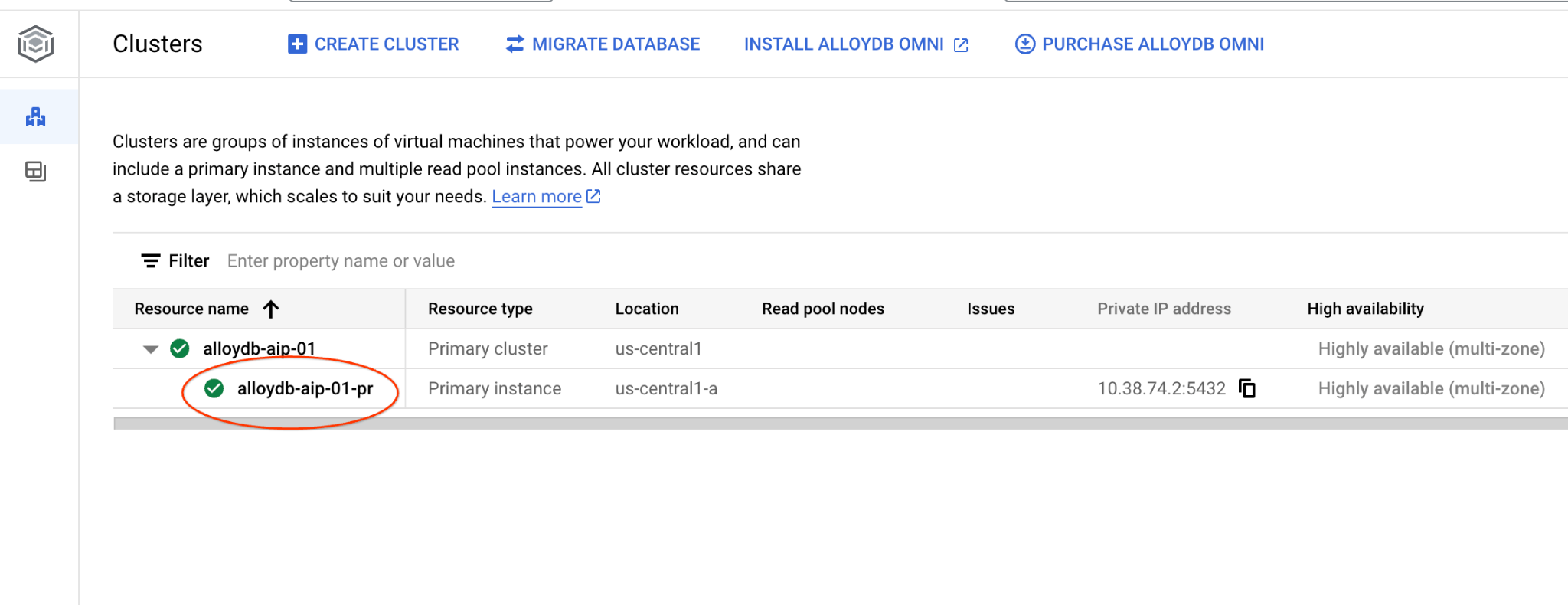
然后点击左侧的 AlloyDB Studio:
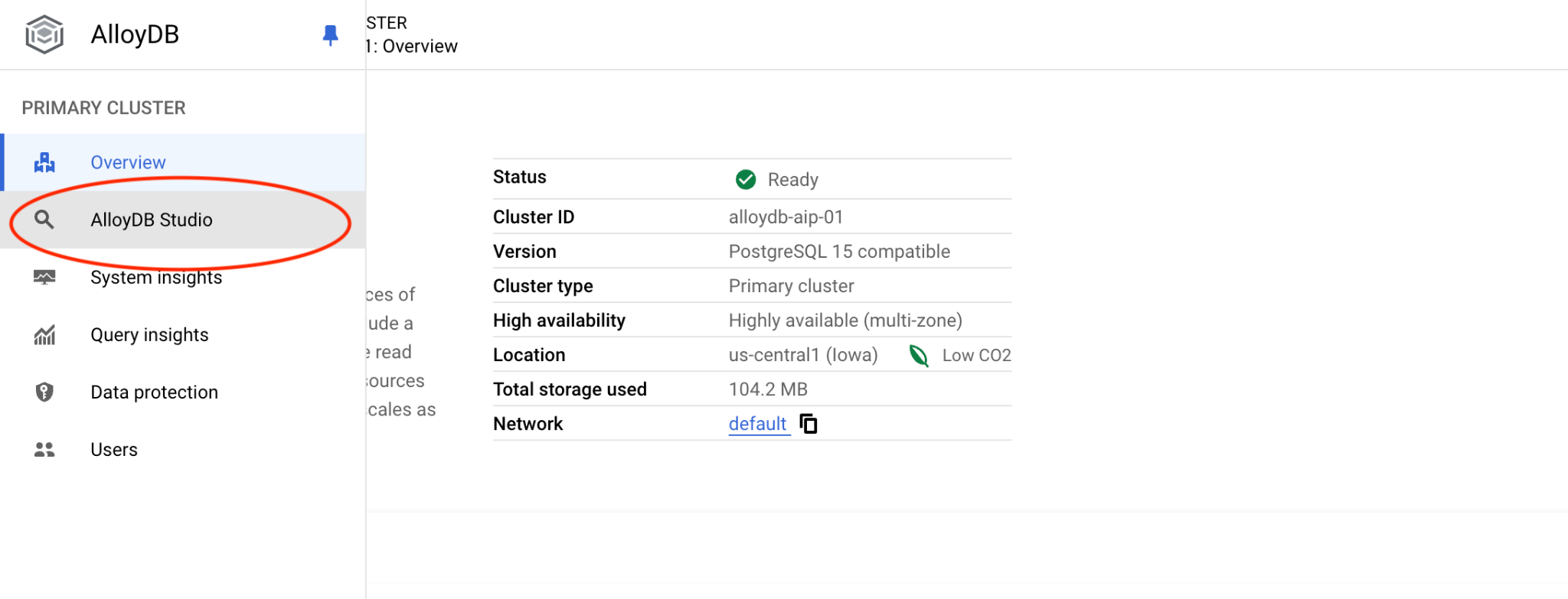
选择 quickstart_db 数据库、用户 postgres,并提供我们在创建集群时记下的密码。然后点击“验证”按钮。
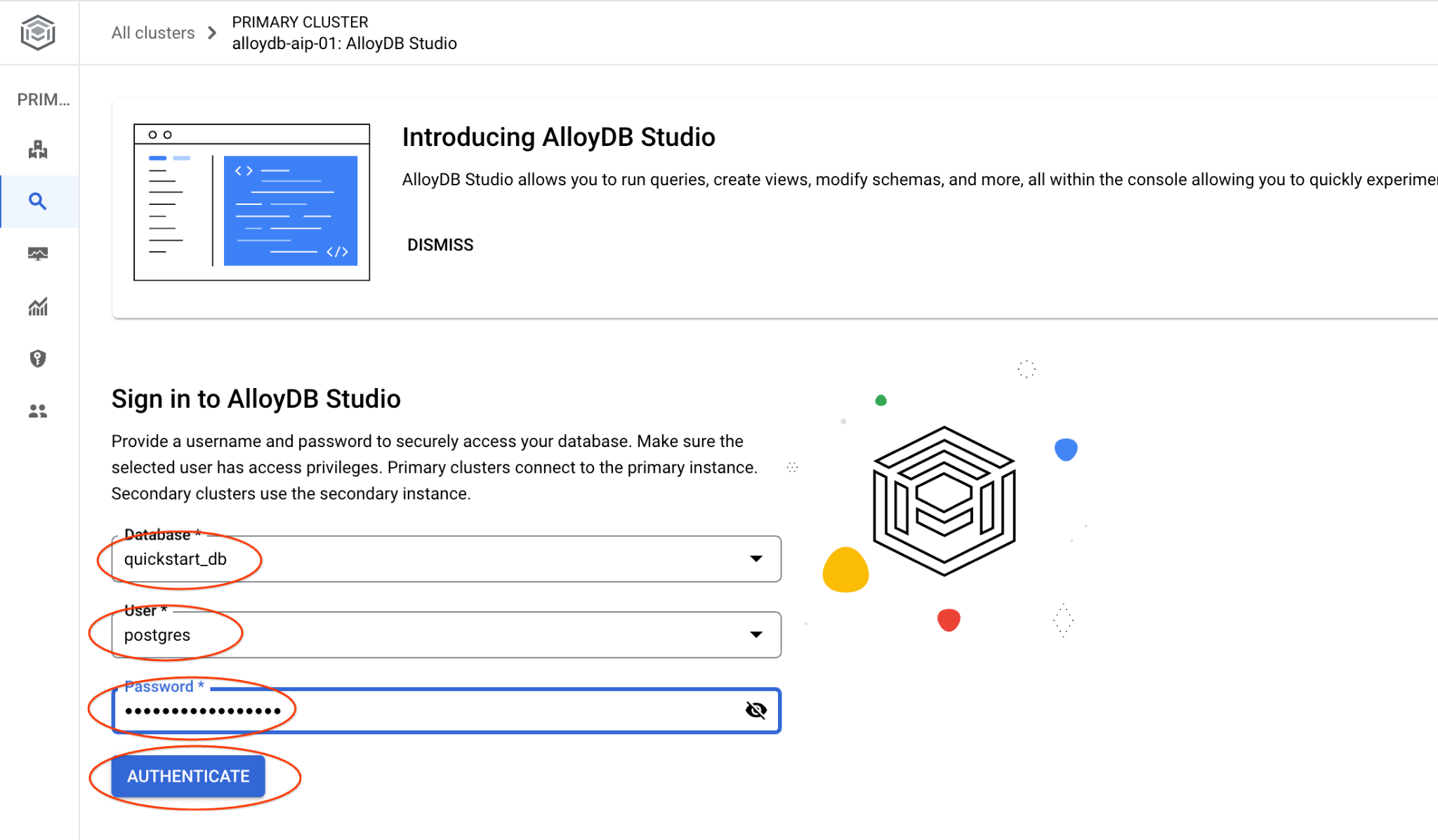
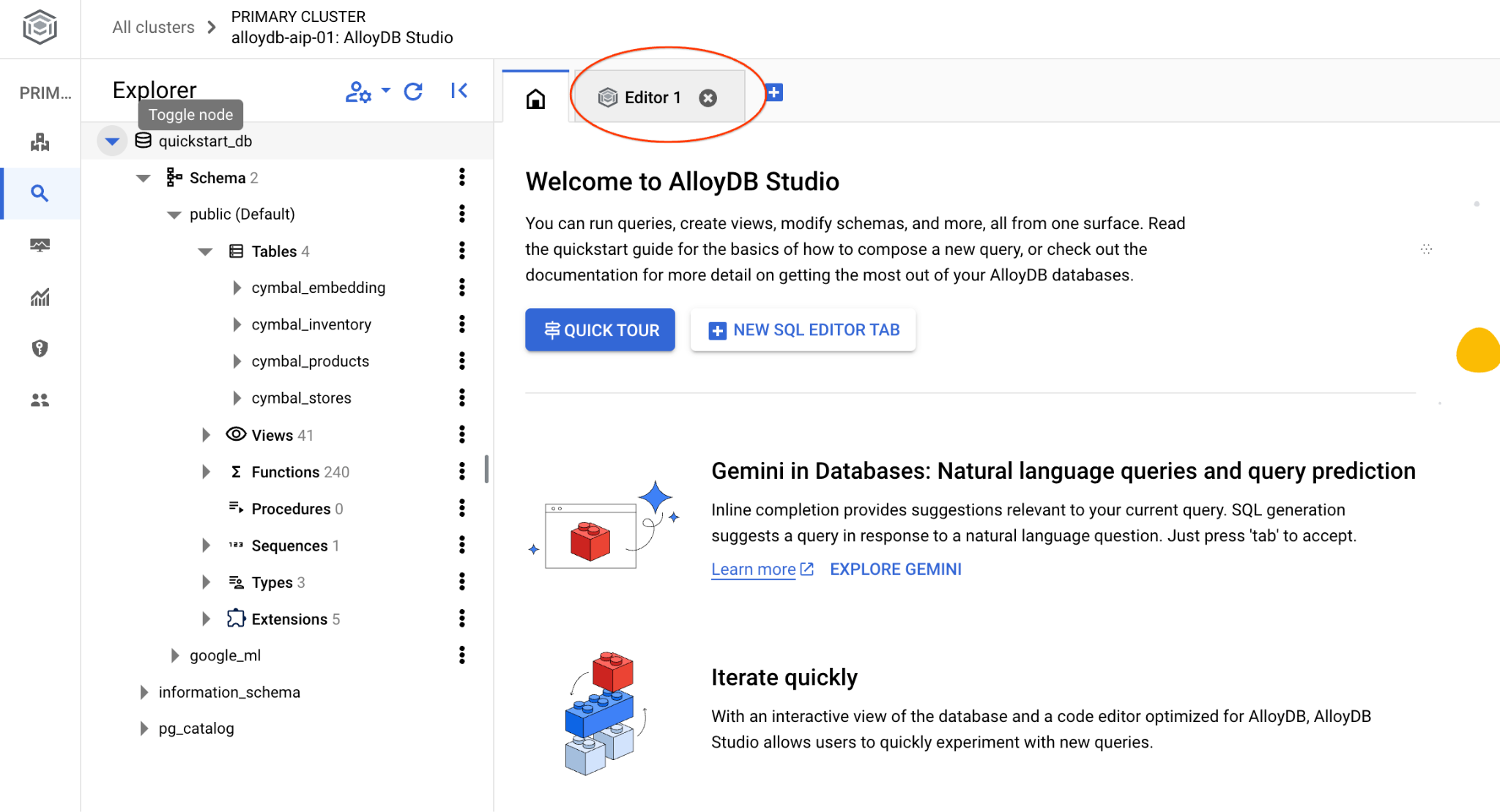
系统会打开 AlloyDB Studio 界面。如需在数据库中运行命令,请点击右侧的“编辑器 1”标签页。
系统会打开一个界面,您可以在其中运行 SQL 命令
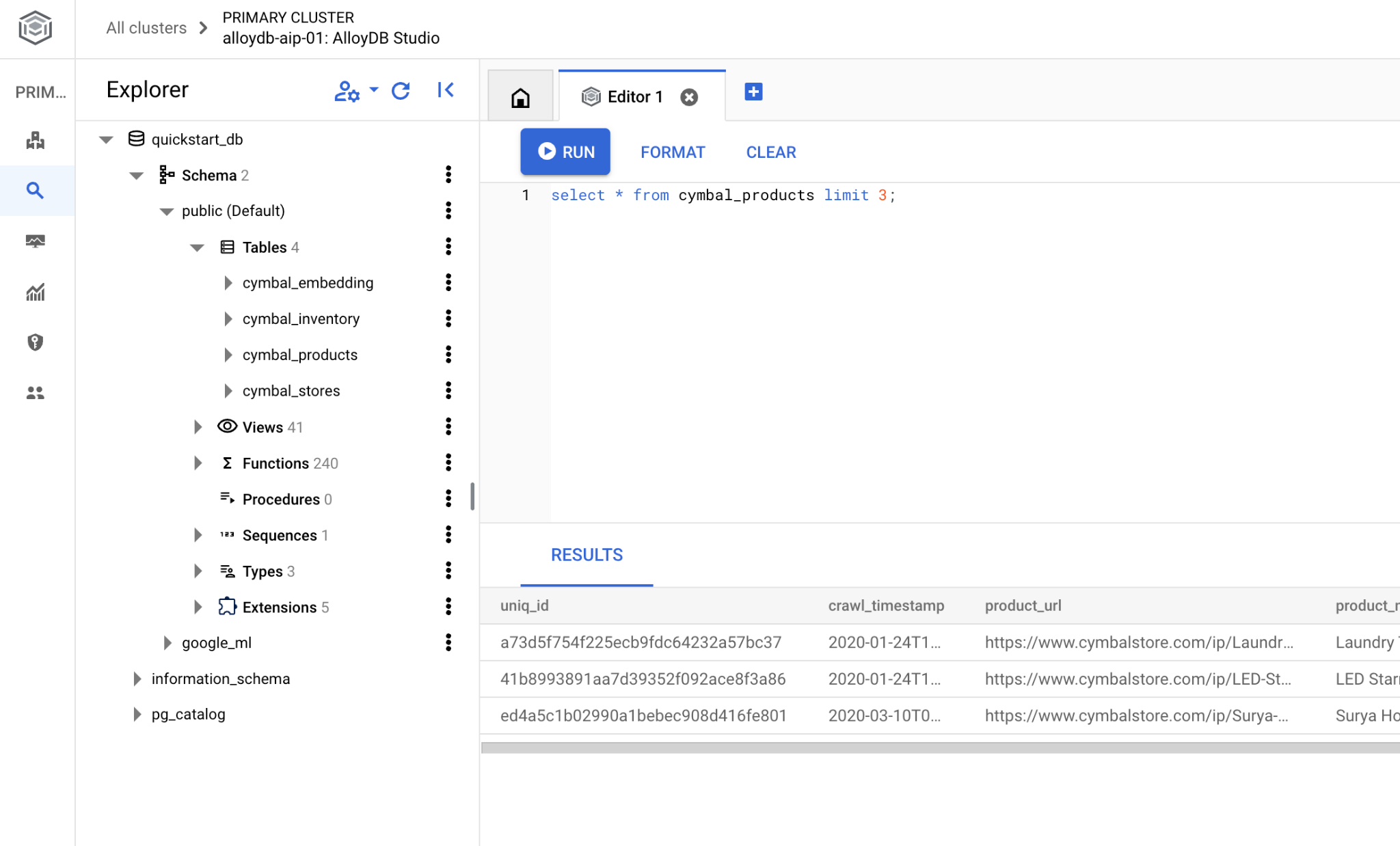
如果您更喜欢使用命令行 psql,请按照替代路线操作,并从虚拟机 SSH 会话连接到数据库,如前几章中所述。
通过 psql 运行相似度搜索
如果数据库会话已断开连接,请使用 psql 或 AlloyDB Studio 重新连接到数据库。
连接到数据库:
psql "host=$INSTANCE_IP user=postgres dbname=quickstart_db"
运行查询,获取与客户请求最相关的可用产品列表。我们将传递给 Vertex AI 以获取向量值的请求听起来像“这里适合种植哪种果树?”
您可以运行以下查询,选择最适合我们要求的前 10 个商品:
SELECT
        cp.product_name,
        left(cp.product_description,80) as description,
        cp.sale_price,
        cs.zip_code,
        (cp.embedding <=> embedding('text-embedding-005','What kind of fruit trees grow well here?')::vector) as distance
FROM
        cymbal_products cp
JOIN cymbal_inventory ci on
        ci.uniq_id=cp.uniq_id
JOIN cymbal_stores cs on
        cs.store_id=ci.store_id
        AND ci.inventory>0
        AND cs.store_id = 1583
ORDER BY
        distance ASC
LIMIT 10;
预期输出如下:
quickstart_db=> SELECT
        cp.product_name,
        left(cp.product_description,80) as description,
        cp.sale_price,
        cs.zip_code,
        (cp.embedding <=> embedding('text-embedding-005','What kind of fruit trees grow well here?')::vector) as distance
FROM
        cymbal_products cp
JOIN cymbal_inventory ci on
        ci.uniq_id=cp.uniq_id
JOIN cymbal_stores cs on
        cs.store_id=ci.store_id
        AND ci.inventory>0
        AND cs.store_id = 1583
ORDER BY
        distance ASC
LIMIT 10;
      product_name       |                                   description                                    | sale_price | zip_code |      distance
-------------------------+----------------------------------------------------------------------------------+------------+----------+---------------------
 Cherry Tree             | This is a beautiful cherry tree that will produce delicious cherries. It is an d |      75.00 |    93230 | 0.43922018972266397
 Meyer Lemon Tree        | Meyer Lemon trees are California's favorite lemon tree! Grow your own lemons by  |         34 |    93230 |  0.4685112926118228
 Toyon                   | This is a beautiful toyon tree that can grow to be over 20 feet tall. It is an e |      10.00 |    93230 |  0.4835677149651668
 California Lilac        | This is a beautiful lilac tree that can grow to be over 10 feet tall. It is an d |       5.00 |    93230 |  0.4947204525907498
 California Peppertree   | This is a beautiful peppertree that can grow to be over 30 feet tall. It is an e |      25.00 |    93230 |  0.5054166905547247
 California Black Walnut | This is a beautiful walnut tree that can grow to be over 80 feet tall. It is a d |     100.00 |    93230 |  0.5084219510932597
 California Sycamore     | This is a beautiful sycamore tree that can grow to be over 100 feet tall. It is  |     300.00 |    93230 |  0.5140519790508755
 Coast Live Oak          | This is a beautiful oak tree that can grow to be over 100 feet tall. It is an ev |     500.00 |    93230 |  0.5143126438081371
 Fremont Cottonwood      | This is a beautiful cottonwood tree that can grow to be over 100 feet tall. It i |     200.00 |    93230 |  0.5174774727252058
 Madrone                 | This is a beautiful madrona tree that can grow to be over 80 feet tall. It is an |      50.00 |    93230 |  0.5227400803389093
9. 改进回答
您可以使用查询结果改进对客户端应用的响应,并使用提供的查询结果作为提示的一部分,为 Vertex AI 生成式基础语言模型准备有意义的输出。
为此,我们计划生成一个包含向量搜索结果的 JSON,然后将生成的 JSON 添加到 Vertex AI 中文本 LLM 模型的提示中,以创建有意义的输出。在第一步中,我们生成 JSON,然后在 Vertex AI Studio 中对其进行测试,最后一步是将 JSON 合并到可在应用中使用的 SQL 语句中。
以 JSON 格式生成输出
修改查询以生成 JSON 格式的输出,并仅返回一行以传递给 Vertex AI
以下是查询示例:
WITH trees as (
SELECT
        cp.product_name,
        left(cp.product_description,80) as description,
        cp.sale_price,
        cs.zip_code,
        cp.uniq_id as product_id
FROM
        cymbal_products cp
JOIN cymbal_inventory ci on
        ci.uniq_id=cp.uniq_id
JOIN cymbal_stores cs on
        cs.store_id=ci.store_id
        AND ci.inventory>0
        AND cs.store_id = 1583
ORDER BY
        (cp.embedding <=> embedding('text-embedding-005','What kind of fruit trees grow well here?')::vector) ASC
LIMIT 1)
SELECT json_agg(trees) FROM trees;
以下是输出中预期的 JSON:
[{"product_name":"Cherry Tree","description":"This is a beautiful cherry tree that will produce delicious cherries. It is an d","sale_price":75.00,"zip_code":93230,"product_id":"d536e9e823296a2eba198e52dd23e712"}]
在 Vertex AI Studio 中运行提示
我们可以使用生成的 JSON,将其作为提示的一部分提供给 Vertex AI Studio 中的生成式 AI 文本模型
在 Cloud 控制台中打开 Vertex AI Studio。

如果您之前未使用过该功能,系统可能会要求您同意使用条款。按“同意并继续”按钮
在界面中撰写提示。
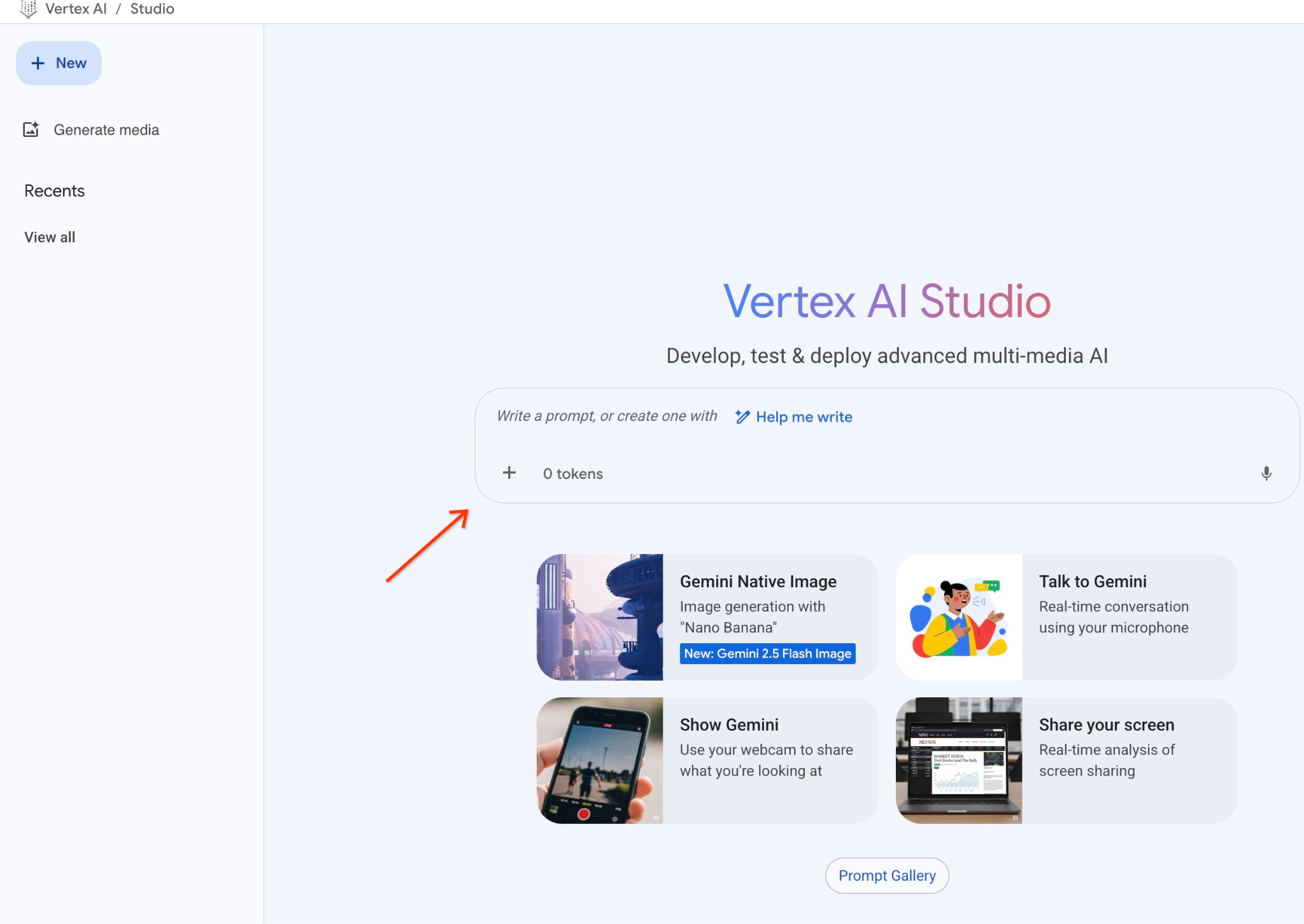
它可能会要求您启用其他 API,但您可以忽略该请求。我们不需要任何额外的 API 即可完成实验。
以下是我们将要使用的提示,其中包含有关树木的早期查询的 JSON 输出:
您是一位友好的顾问,可根据客户的需求帮助其找到合适的产品。
根据客户请求,我们已加载与搜索内容密切相关的商品列表。
JSON 格式的列表,包含以下值列表:{"product_name":"name","description":"some description","sale_price":10,"zip_code": 10234, "produt_id": "02056727942aeb714dc9a2313654e1b0"}
以下是产品列表:
{"product_name":"Cherry Tree","description":"This is a beautiful cherry tree that will produce delicious cherries. It is an d","sale_price":75.00,"zip_code":93230,"product_id":"d536e9e823296a2eba198e52dd23e712"}
客户询问:“哪种树在这里长得最好?”
您应提供有关商品、价格和一些补充信息
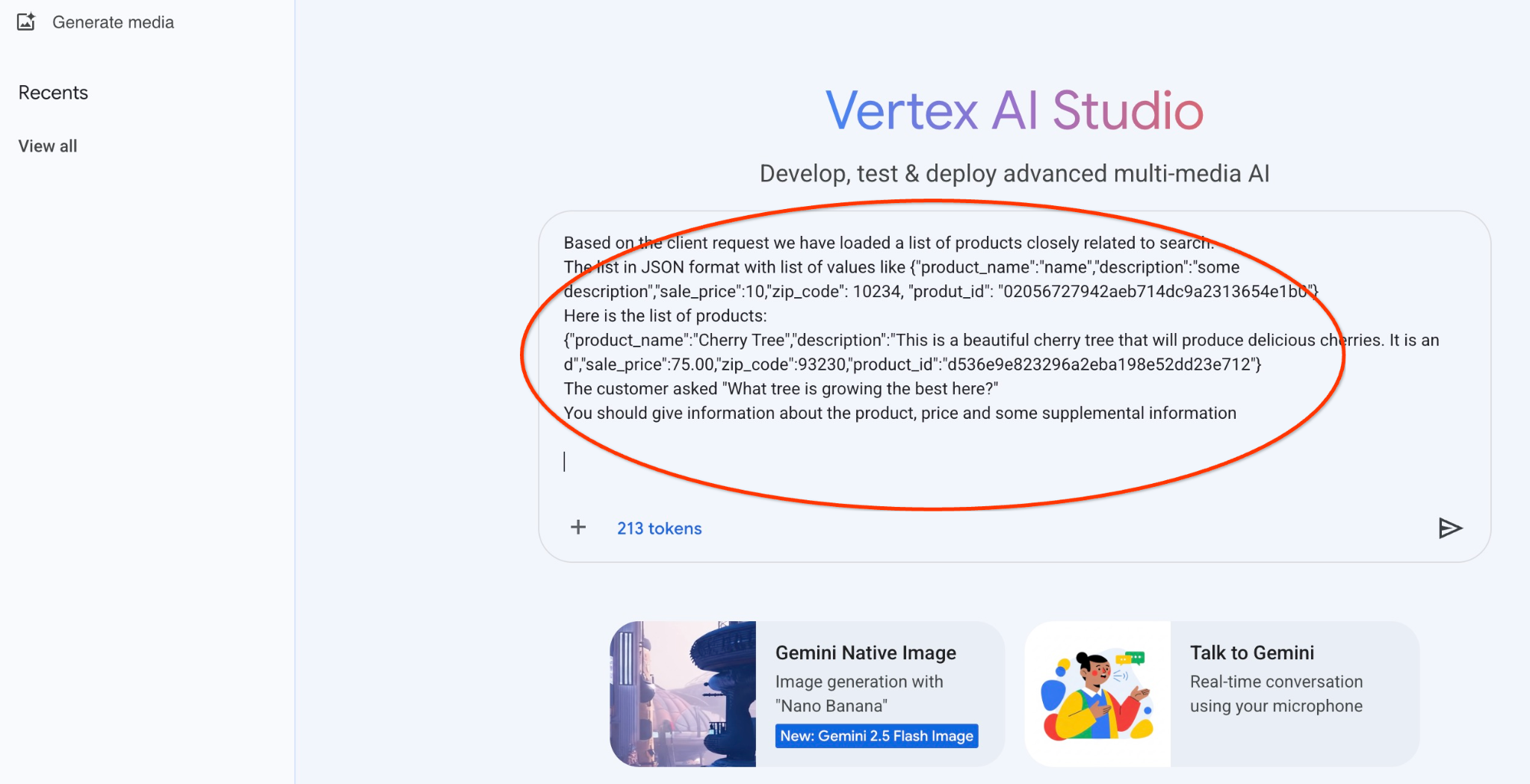
以下是我们使用 gemini-2.5-flash-light 模型运行包含 JSON 值的提示时得到的结果:
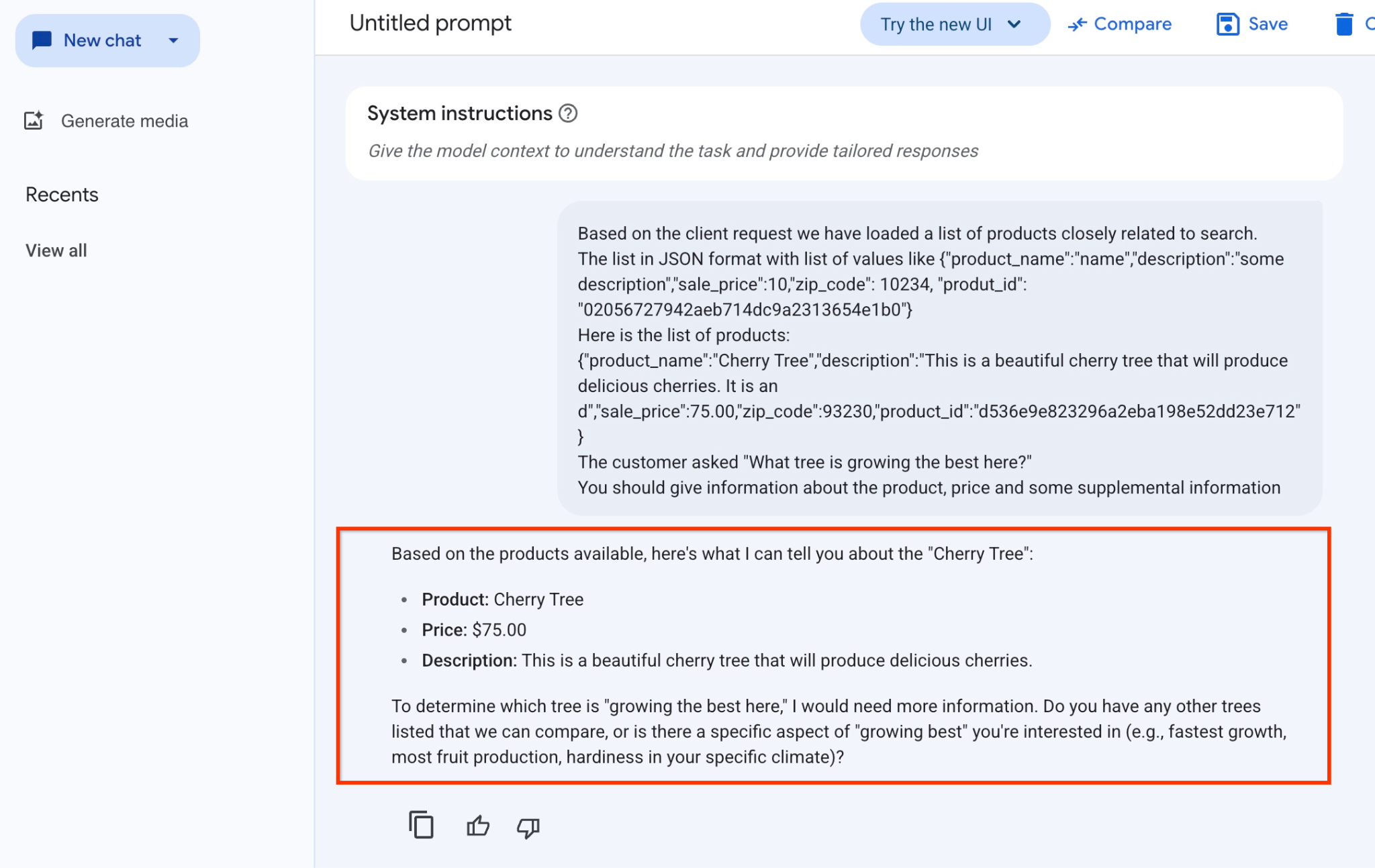
在此示例中,我们从模型获得的回答如下。请注意,由于模型和参数会随时间推移而发生变化,因此您的回答可能有所不同:
“根据现有产品,以下是我可以告诉您有关‘樱桃树’的信息:
商品:Cherry Tree
价格:75.00 美元
说明:这是一棵美丽的樱桃树,会结出美味的樱桃。
若要确定哪种树“在这里长得最好”,我需要更多信息。您是否列出了我们可以比较的其他树木,或者您是否对“生长最佳”的某个特定方面感兴趣(例如,生长最快、水果产量最高、在您特定气候下的耐寒性)?”
在 PSQL 中运行提示
我们可以将 AlloyDB AI 与 Vertex AI 集成,以便直接在数据库中使用 SQL 从生成式模型获得相同的回答。不过,若要使用 gemini-1.5-flash 模型,我们需要先注册该模型。
验证 google_ml_integration 扩展程序。版本应为 1.4.2 或更高版本。
如前所示,从 psql 连接到 quickstart_db 数据库(或使用 AlloyDB Studio),然后执行以下命令:
SELECT extversion from pg_extension where extname='google_ml_integration';
检查 google_ml_integration.enable_model_support 数据库标志。
show google_ml_integration.enable_model_support;
psql 会话的预期输出为“on”:
postgres=> show google_ml_integration.enable_model_support;
 google_ml_integration.enable_model_support
--------------------------------------------
 on
(1 row)
如果显示“关闭”,则需要将 google_ml_integration.enable_model_support 数据库标志设置为“开启”。为此,您可以使用 AlloyDB Web 控制台界面,也可以运行以下 gcloud 命令。
PROJECT_ID=$(gcloud config get-value project)
REGION=us-central1
ADBCLUSTER=alloydb-aip-01
gcloud beta alloydb instances update $ADBCLUSTER-pr \
  --database-flags google_ml_integration.enable_faster_embedding_generation=on,google_ml_integration.enable_model_support=on \
  --region=$REGION \
  --cluster=$ADBCLUSTER \
  --project=$PROJECT_ID \
  --update-mode=FORCE_APPLY
该命令大约需要 1-3 分钟才能在后台执行完毕。然后,您可以再次验证该标志。
对于我们的查询,我们需要两个模型。第一个是已使用的 text-embedding-005 模型,第二个是 Google 通用 Gemini 模型之一。
我们从文本嵌入模型开始。如需在 psql 或 AlloyDB Studio 中注册模型运行,请运行以下代码:
CALL
  google_ml.create_model(
    model_id => 'text-embedding-005',
    model_provider => 'google',
    model_qualified_name => 'text-embedding-005',
    model_type => 'text_embedding',
    model_auth_type => 'alloydb_service_agent_iam',
    model_in_transform_fn => 'google_ml.vertexai_text_embedding_input_transform',
    model_out_transform_fn => 'google_ml.vertexai_text_embedding_output_transform');
我们需要注册的下一个模型是 gemini-2.0-flash-001,它将用于生成用户友好的输出。
CALL
  google_ml.create_model(
    model_id => 'gemini-2.5-flash',
    model_request_url => 'publishers/google/models/gemini-2.5-flash:streamGenerateContent',
    model_provider => 'google',
    model_auth_type => 'alloydb_service_agent_iam');
您始终可以通过从 google_ml.model_info_view 中选择信息来验证已注册的模型列表。
select model_id,model_type from google_ml.model_info_view;
以下是输出示例
quickstart_db=> select model_id,model_type from google_ml.model_info_view;
        model_id         |   model_type
-------------------------+----------------
 textembedding-gecko     | text_embedding
 textembedding-gecko@001 | text_embedding
 text-embedding-005      | text_embedding
 gemini-2.5-flash        | generic
(4 rows)
现在,我们可以使用子查询 JSON 中生成的代码,通过 SQL 将其作为提示的一部分提供给生成式 AI 文本模型。
在 psql 或 AlloyDB Studio 会话中,针对数据库运行以下查询
WITH trees AS (
SELECT
        cp.product_name,
        cp.product_description AS description,
        cp.sale_price,
        cs.zip_code,
        cp.uniq_id AS product_id
FROM
        cymbal_products cp
JOIN cymbal_inventory ci ON
        ci.uniq_id = cp.uniq_id
JOIN cymbal_stores cs ON
        cs.store_id = ci.store_id
        AND ci.inventory>0
        AND cs.store_id = 1583
ORDER BY
        (cp.embedding <=> embedding('text-embedding-005',
        'What kind of fruit trees grow well here?')::vector) ASC
LIMIT 1),
prompt AS (
SELECT
        'You are a friendly advisor helping to find a product based on the customer''s needs.
Based on the client request we have loaded a list of products closely related to search.
The list in JSON format with list of values like {"product_name":"name","product_description":"some description","sale_price":10}
Here is the list of products:' || json_agg(trees) || 'The customer asked "What kind of fruit trees grow well here?"
You should give information about the product, price and some supplemental information' AS prompt_text
FROM
        trees),
response AS (
SELECT
        json_array_elements(google_ml.predict_row( model_id =>'gemini-2.5-flash',
        request_body => json_build_object('contents',
        json_build_object('role',
        'user',
        'parts',
        json_build_object('text',
        prompt_text)))))->'candidates'->0->'content'->'parts'->0->'text' AS resp
FROM
        prompt)
SELECT
        string_agg(resp::text,
        ' ')
FROM
        response;
以下是预期输出。您的输出结果可能会因模型版本和参数而异:
"Hello there! I can certainly help you with finding a great fruit tree for your area.\n\nBased on what grows well, we have a wonderful **Cherry Tree** that could be a perfect fit!\n\nThis beautiful cherry tree is an excellent choice for producing delicious cherries right in your garden. It's an deciduous tree that typically" " grows to about 15 feet tall. Beyond its fruit, it offers lovely aesthetics with dark green leaves in the summer that transition to a beautiful red in the fall, making it great for shade and privacy too.\n\nCherry trees generally prefer a cool, moist climate and sandy soil, and they are best suited for USDA Zones" " 4-9. Given the zip code you're inquiring about (93230), which is typically in USDA Zone 9, this Cherry Tree should thrive wonderfully!\n\nYou can get this magnificent tree for just **$75.00**.\n\nLet me know if you have any other questions!" "
10. 创建向量索引
我们的数据集非常小,响应时间主要取决于与 AI 模型的互动。但当您有数百万个向量时,向量搜索部分可能会占用我们响应时间的很大一部分,并给系统带来很高的负载。为了改进这一点,我们可以基于向量构建索引。
创建 ScaNN 索引
若要构建 SCANN 索引,我们需要再启用一个扩展程序。扩展程序 alloydb_scann 提供了一个接口,用于使用 Google ScaNN 算法处理 ANN 类型的向量索引。
CREATE EXTENSION IF NOT EXISTS alloydb_scann;
预期输出:
quickstart_db=> CREATE EXTENSION IF NOT EXISTS alloydb_scann;
CREATE EXTENSION
Time: 27.468 ms
quickstart_db=>
索引可以在 MANUAL 或 AUTO 模式下创建。默认情况下,系统会启用 MANUAL 模式,您可以像创建和维护任何其他索引一样创建和维护索引。不过,如果您启用 AUTO 模式,则可以创建不需要您进行任何维护的索引。您可以在文档中详细了解所有选项,下面我将向您展示如何启用 AUTO 模式并创建索引。在本例中,我们没有足够的行来以 AUTO 模式创建索引,因此我们将以 MANUAL 模式创建索引。
在以下示例中,我将大多数参数保留为默认值,仅为索引提供分区数 (num_leaves):
CREATE INDEX cymbal_products_embeddings_scann ON cymbal_products
  USING scann (embedding cosine)
  WITH (num_leaves=31, max_num_levels = 2);
您可以在该文档中了解有关调整指数参数的信息。
预期输出:
quickstart_db=> CREATE INDEX cymbal_products_embeddings_scann ON cymbal_products
  USING scann (embedding cosine)
  WITH (num_leaves=31, max_num_levels = 2);
CREATE INDEX
quickstart_db=>
比较回答
现在,我们可以在 EXPLAIN 模式下运行向量搜索查询,并验证是否使用了索引。
EXPLAIN (analyze)
WITH trees as (
SELECT
        cp.product_name,
        left(cp.product_description,80) as description,
        cp.sale_price,
        cs.zip_code,
        cp.uniq_id as product_id
FROM
        cymbal_products cp
JOIN cymbal_inventory ci on
        ci.uniq_id=cp.uniq_id
JOIN cymbal_stores cs on
        cs.store_id=ci.store_id
        AND ci.inventory>0
        AND cs.store_id = 1583
ORDER BY
        (cp.embedding <=> embedding('text-embedding-005','What kind of fruit trees grow well here?')::vector) ASC
LIMIT 1)
SELECT json_agg(trees) FROM trees;
预期输出(为简洁起见,这里省略了部分信息):
...
Aggregate (cost=16.59..16.60 rows=1 width=32) (actual time=2.875..2.877 rows=1 loops=1)
-> Subquery Scan on trees (cost=8.42..16.59 rows=1 width=142) (actual time=2.860..2.862 rows=1 loops=1)
-> Limit (cost=8.42..16.58 rows=1 width=158) (actual time=2.855..2.856 rows=1 loops=1)
-> Nested Loop (cost=8.42..6489.19 rows=794 width=158) (actual time=2.854..2.855 rows=1 loops=1)
-> Nested Loop (cost=8.13..6466.99 rows=794 width=938) (actual time=2.742..2.743 rows=1 loops=1)
-> Index Scan using cymbal_products_embeddings_scann on cymbal_products cp (cost=7.71..111.99 rows=876 width=934) (actual time=2.724..2.724 rows=1 loops=1)
Order By: (embedding <=> '[0.008864171,0.03693164,-0.024245683,-0.00355923,0.0055611245,0.015985578,...<redacted>...5685,-0.03914233,-0.018452475,0.00826032,-0.07372604]'::vector)
-> Index Scan using walmart_inventory_pkey on cymbal_inventory ci (cost=0.42..7.26 rows=1 width=37) (actual time=0.015..0.015 rows=1 loops=1)
Index Cond: ((store_id = 1583) AND (uniq_id = (cp.uniq_id)::text))
...
从输出中,我们可以清楚地看到查询使用了“Index Scan using cymbal_products_embeddings_scann on cymbal_products”。
如果我们运行不带 explain 的查询:
WITH trees as (
SELECT
        cp.product_name,
        left(cp.product_description,80) as description,
        cp.sale_price,
        cs.zip_code,
        cp.uniq_id as product_id
FROM
        cymbal_products cp
JOIN cymbal_inventory ci on
        ci.uniq_id=cp.uniq_id
JOIN cymbal_stores cs on
        cs.store_id=ci.store_id
        AND ci.inventory>0
        AND cs.store_id = 1583
ORDER BY
        (cp.embedding <=> embedding('text-embedding-005','What kind of fruit trees grow well here?')::vector) ASC
LIMIT 1)
SELECT json_agg(trees) FROM trees;
预期输出:
[{"product_name":"Cherry Tree","description":"This is a beautiful cherry tree that will produce delicious cherries. It is an d","sale_price":75.00,"zip_code":93230,"product_id":"d536e9e823296a2eba198e52dd23e712"}]
我们可以看到,结果与未编制索引时搜索结果中的樱桃树相同。有时,情况可能并非如此,响应可能会返回并非同一树但来自顶部的其他树。因此,该指数既能提高性能,又能保持足够的准确性,从而提供良好的结果。
您可以尝试适用于向量的不同索引,并访问文档页面,了解更多与 Langchain 集成相关的实验和示例。
11. 清理环境
完成实验后销毁 AlloyDB 实例和集群。
删除 AlloyDB 集群和所有实例
如果您曾使用过 AlloyDB 试用版。如果您计划使用试用集群测试其他实验和资源,请勿删除该试用集群。您将无法在同一项目中创建其他试用集群。
系统会通过强制选项销毁集群,该选项还会删除属于该集群的所有实例。
如果您已断开连接且之前的所有设置都已丢失,请在 Cloud Shell 中定义项目和环境变量:
gcloud config set project <your project id>
export REGION=us-central1
export ADBCLUSTER=alloydb-aip-01
export PROJECT_ID=$(gcloud config get-value project)
删除集群:
gcloud alloydb clusters delete $ADBCLUSTER --region=$REGION --force
预期的控制台输出:
student@cloudshell:~ (test-project-001-402417)$ gcloud alloydb clusters delete $ADBCLUSTER --region=$REGION --force
All of the cluster data will be lost when the cluster is deleted.

Do you want to continue (Y/n)?  Y

Operation ID: operation-1697820178429-6082890a0b570-4a72f7e4-4c5df36f
Deleting cluster...done.
删除 AlloyDB 备份
删除集群的所有 AlloyDB 备份:
for i in $(gcloud alloydb backups list --filter="CLUSTER_NAME: projects/$PROJECT_ID/locations/$REGION/clusters/$ADBCLUSTER" --format="value(name)" --sort-by=~createTime) ; do gcloud alloydb backups delete $(basename $i) --region $REGION --quiet; done
预期的控制台输出:
student@cloudshell:~ (test-project-001-402417)$ for i in $(gcloud alloydb backups list --filter="CLUSTER_NAME: projects/$PROJECT_ID/locations/$REGION/clusters/$ADBCLUSTER" --format="value(name)" --sort-by=~createTime) ; do gcloud alloydb backups delete $(basename $i) --region $REGION --quiet; done
Operation ID: operation-1697826266108-60829fb7b5258-7f99dc0b-99f3c35f
Deleting backup...done.
现在我们可以销毁虚拟机了
删除 GCE 虚拟机
在 Cloud Shell 中,执行以下命令:
export GCEVM=instance-1
export ZONE=us-central1-a
gcloud compute instances delete $GCEVM \
    --zone=$ZONE \
    --quiet
预期的控制台输出:
student@cloudshell:~ (test-project-001-402417)$ export GCEVM=instance-1
export ZONE=us-central1-a
gcloud compute instances delete $GCEVM \
    --zone=$ZONE \
    --quiet
Deleted
12. 恭喜
恭喜您完成此 Codelab。
本实验是“可用于生产用途的 AI 与 Google Cloud”学习路线的组成部分。
- 探索完整课程,弥合从原型设计到生产的差距。
- 使用 #
#ProductionReadyAI分享您的进度。
所学内容
- 如何部署 AlloyDB 集群和主实例
- 如何从 Google Compute Engine 虚拟机连接到 AlloyDB
- 如何创建数据库并启用 AlloyDB AI
- 如何将数据加载到数据库中
- 如何使用 AlloyDB Studio
- 如何在 AlloyDB 中使用 Vertex AI 嵌入模型
- 如何使用 Vertex AI Studio
- 如何使用 Vertex AI 生成式模型丰富结果
- 如何使用向量索引提升性能
13. 调查问卷
输出如下: