
1. 簡介
Private Service Connect 是 Google Cloud 網路功能,可讓消費者從虛擬私有雲網路內,以私密方式存取代管服務。同樣地,代管服務生產端也能在自己的獨立虛擬私有雲網路中代管這些服務,並為消費者提供私人連線。
過去,一旦透過服務附件公開 PSC 服務,就無法變更服務負載平衡器,否則必須移除服務附件,並中斷消費者 PSC 端點連線。隨著 PSC 可變動性的推出,生產者可以更新負載平衡器,同時保留 PSC 端點連線。變更負載平衡器時,維持與服務連結的 PSC 端點連線,好處是不需要消費者端採取任何動作。
目前 PSC 可變更的項目包括
- 遷移至同類型的負載平衡器轉送規則 (例如網路直通式至網路直通式)
- 遷移至不同類型的負載平衡器轉送規則 (例如網路直通式負載平衡器到應用程式負載平衡器)
PSC 可變動性不支援就地編輯轉送規則。
在本實驗室中,您將建立透過內部網路直通式負載平衡器公開的生產端網路服務,確保服務可透過 PSC 端點連線,然後將服務連結關聯更新為內部應用程式負載平衡器的新轉送規則。
課程內容
- 建立簡易的 Apache Web 服務,並以 PSC 生產者服務的形式公開。
- 建立 PSC 端點。
- 為消費者服務呼叫建立 Cloud DNS 私人區域。
- 使用 PSC Mutability 更新與服務連結相關聯的轉送規則。
軟硬體需求
- 具備擁有者權限的 Google Cloud 專案
- Google Cloud 網路基礎知識
2. 測試環境
傳統上,Producer 和 Consumer 會在不同的專案中運作。為求簡單起見,我們會在同一個專案中執行所有動作,但每個步驟都會標示「製作人」或「消費者」專案,方便使用者在不同專案中作業。
在本實驗室中,我們首先會建立含有三個子網路的 producer-vpc,其中一個子網路用於代管生產者服務和測試 VM,一個用於負載平衡器轉送規則,另一個則用於 PSC NAT 子網路。我們需要 Cloud Router 和 Cloud NAT,才能連上網際網路並下載 Linux 套件。我們會透過內部區域網路直通式負載平衡器,公開透過非受管理執行個體群組設定的 Apache 服務,並將轉送規則與服務連結建立關聯。
在消費者端,我們會建立具有單一子網路的 consumer-vpc,用於代管 PSC 端點和測試用戶端 VM。我們會設定 Cloud DNS 私人區域,透過主機名稱存取服務。
為展示 PSC 可變動性功能,我們會在生產者端新增兩個子網路;一個用於代管新的服務 VM,另一個則用於負載平衡器 Proxy 專用子網路。我們會建立新的 VM 來代管 Apache 網路伺服器,同樣透過非受管理執行個體群組設定,並透過新的內部區域應用程式負載平衡器公開。我們會更新服務附件,指向新的轉送規則,並測試消費者端的連線是否維持不變。

3. 設定和需求
自修實驗室環境設定
- 登入 Google Cloud 控制台,然後建立新專案或重複使用現有專案。如果沒有 Gmail 或 Google Workspace 帳戶,請先建立帳戶。


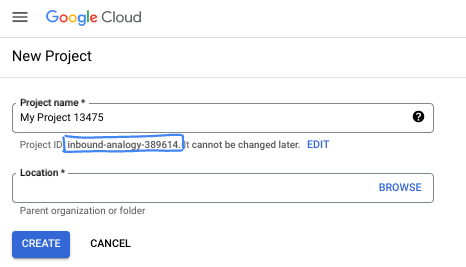
- 專案名稱是這個專案參與者的顯示名稱。這是 Google API 未使用的字元字串。你隨時可以更新。
- 專案 ID 在所有 Google Cloud 專案中都是不重複的,而且設定後即無法變更。Cloud 控制台會自動產生專屬字串,通常您不需要在意該字串為何。在大多數程式碼研究室中,您需要參照專案 ID (通常標示為
PROJECT_ID)。如果您不喜歡產生的 ID,可以產生另一個隨機 ID。你也可以嘗試使用自己的名稱,看看是否可用。完成這個步驟後就無法變更,且專案期間會維持不變。 - 請注意,有些 API 會使用第三個值,也就是「專案編號」。如要進一步瞭解這三種值,請參閱說明文件。
- 接著,您需要在 Cloud 控制台中啟用帳單,才能使用 Cloud 資源/API。完成這個程式碼研究室的費用不高,甚至可能完全免費。如要關閉資源,避免在本教學課程結束後繼續產生費用,請刪除您建立的資源或專案。Google Cloud 新使用者可參加價值$300 美元的免費試用計畫。
啟動 Cloud Shell
雖然可以透過筆電遠端操作 Google Cloud,但在本程式碼研究室中,您將使用 Google Cloud Shell,這是可在雲端執行的指令列環境。
在 Google Cloud 控制台中,點選右上工具列的 Cloud Shell 圖示:

佈建並連線至環境的作業需要一些時間才能完成。完成後,您應該會看到如下的內容:

這部虛擬機器搭載各種您需要的開發工具,並提供永久的 5GB 主目錄,而且可在 Google Cloud 運作,大幅提升網路效能並強化驗證功能。您可以在瀏覽器中完成本程式碼研究室的所有作業。您不需要安裝任何軟體。
4. 事前準備
啟用 API
在 Cloud Shell 中,確認專案 ID 已設定完畢
gcloud config list project
gcloud config set project [YOUR-PROJECT-NAME]
export project=[YOUR-PROJECT-NAME]
export region=us-central1
export zone=$region-a
echo $project
echo $region
echo $zone
啟用所有必要服務
gcloud services enable compute.googleapis.com
gcloud services enable dns.googleapis.com
5. 建構生產端網路 [生產端專案]
建立虛擬私有雲網路
透過 Cloud Shell
gcloud compute networks create producer-vpc \
    --subnet-mode=custom
建立子網路
首先,我們會在 producer-vpc 中部署 3 個子網路。一個用於部署生產者服務,一個用於負載平衡器轉送規則,另一個則會與 PSC 服務連結建立關聯,用於 PSC NAT 子網路。
透過 Cloud Shell
gcloud compute networks subnets create producer-service-subnet \
    --network=producer-vpc \
    --range=10.0.0.0/28 \
    --region=$region

gcloud compute networks subnets create producer-fr-subnet \
        --network=producer-vpc \
        --range=192.168.0.0/28 \
        --region=$region

gcloud compute networks subnets create psc-nat-subnet \
    --network=producer-vpc \
    --range=10.100.0.0/28 \
    --region=$region \
    --purpose=PRIVATE_SERVICE_CONNECT
建立 Cloud NAT
您必須使用 Cloud NAT,才能為製作人服務安裝適當的套件。
透過 Cloud Shell
gcloud compute routers create $region-cr \
    --network=producer-vpc \
    --region=$region
透過 Cloud Shell
gcloud compute routers nats create $region-nat \
    --router=$region-cr \
    --region=$region \
    --nat-all-subnet-ip-ranges \
    --auto-allocate-nat-external-ips
建立網路防火牆政策和規則
透過 Cloud Shell
gcloud compute network-firewall-policies create producer-vpc-policy --global

gcloud compute network-firewall-policies associations create \
    --firewall-policy producer-vpc-policy \
    --network producer-vpc \
    --name network-producer-vpc \
    --global-firewall-policy
如要允許 IAP 連線至您的 VM 執行個體,請根據以下條件建立防火牆規則:
- 套用至所有您希望能透過 IAP 存取的 VM 執行個體。
- 允許來自 IP 範圍 35.235.240.0/20 的輸入流量。這個範圍包含 IAP 用於 TCP 轉送的所有 IP 位址。
透過 Cloud Shell
gcloud compute network-firewall-policies rules create 1000 \
    --action ALLOW \
    --firewall-policy producer-vpc-policy \
    --description "SSH with IAP" \
    --direction INGRESS \
    --src-ip-ranges 35.235.240.0/20 \
    --layer4-configs tcp:22  \
    --global-firewall-policy
我們將從三項防火牆規則開始。其中一個規則允許負載平衡器健康狀態檢查存取 VM (2000),另一個規則允許從 PSC NAT 範圍存取 VM (3000),最後一個規則則允許服務子網路中的 VM 之間連線,以利測試 (4000)。我們將為通訊埠 80 建立所有規則,因為我們會將這個通訊埠用於服務。
透過 Cloud Shell
gcloud compute network-firewall-policies rules create 2000 \
    --action ALLOW \
    --firewall-policy producer-vpc-policy \
    --description "LB healthchecks" \
    --direction INGRESS \
    --src-ip-ranges 130.211.0.0/22,35.191.0.0/16 \
    --layer4-configs tcp:80  \
    --global-firewall-policy

gcloud compute network-firewall-policies rules create 3000 \
    --action ALLOW \
    --firewall-policy producer-vpc-policy \
    --description "allow access from PSC NAT subnet" \
    --direction INGRESS \
    --src-ip-ranges 10.100.0.0/28 \
    --layer4-configs tcp:80  \
    --global-firewall-policy

 gcloud compute network-firewall-policies rules create 4000 \
    --action ALLOW \
    --firewall-policy producer-vpc-policy \
    --description "allow access between producer service VMs and testing client for testing purposes" \
    --direction INGRESS \
    --src-ip-ranges 10.0.0.0/28 \
    --layer4-configs tcp:80 \
    --global-firewall-policy
6. 建立生產端服務 [生產端專案]
我們將使用非代管執行個體群組建立簡易的 Apache 網路服務,顯示「I am a Producer Service」。
建立執行個體
透過 Cloud Shell
gcloud compute instances create producer-service-vm \
    --network producer-vpc \
    --subnet producer-service-subnet \
    --zone $zone \
    --no-address \
    --metadata startup-script='#! /bin/bash
    sudo apt-get update
    sudo apt-get install apache2 -y
    a2enmod ssl
    sudo a2ensite default-ssl
    echo "I am a Producer Service." | \
    tee /var/www/html/index.html
    systemctl restart apache2'
建立非代管執行個體群組
透過 Cloud Shell
gcloud compute instance-groups unmanaged create producer-uig \
  --zone=$zone
將 producer-service-vm 新增至我們剛建立的非代管執行個體群組。
透過 Cloud Shell
gcloud compute instance-groups unmanaged add-instances producer-uig \
  --zone=$zone \
  --instances=producer-service-vm
建立負載平衡器元件
對於生產端服務的第 1 版,我們將使用通訊埠 80 上的網路直通式負載平衡器公開服務。
為通訊埠 80 部署健康狀態檢查。
透過 Cloud Shell
gcloud compute health-checks create http producer-hc \
        --region=$region
部署後端服務,並將後端新增至後端服務。
透過 Cloud Shell
gcloud compute backend-services create producer-bes \
  --load-balancing-scheme=internal \
  --protocol=tcp \
  --region=$region \
  --health-checks=producer-hc \
  --health-checks-region=$region

gcloud compute backend-services add-backend producer-bes \
  --region=$region \
  --instance-group=producer-uig \
  --instance-group-zone=$zone
建立要用於負載平衡器轉送規則的靜態 IP 位址。
透過 Cloud Shell
gcloud compute addresses create producer-fr-ip\
  --region $region \
  --subnet producer-fr-subnet \
  --addresses 192.168.0.2
使用先前建立的後端服務和 IP 位址,建立公開通訊埠 80 的負載平衡器轉送規則。
透過 Cloud Shell
gcloud compute forwarding-rules create producer-fr \
  --region=$region \
  --load-balancing-scheme=internal \
  --network=producer-vpc \
  --subnet=producer-fr-subnet \
  --address=producer-fr-ip \
  --ip-protocol=TCP \
  --ports=80 \
  --backend-service=producer-bes \
  --backend-service-region=$region
7. 測試生產端服務 [生產端專案]
在 producer-service-subnet 中建立測試 VM,登入 VM 並測試對 Apache 服務的呼叫。
透過 Cloud Shell
 gcloud compute instances create producer-test-vm \
    --zone=$zone \
    --subnet=producer-service-subnet \
    --no-address
透過 Cloud Shell
gcloud compute ssh producer-test-vm \
    --zone=$zone \
    --command="curl -s 192.168.0.2/index.html"
預期的輸出內容:
I am a Producer Service.
8. 透過服務連結公開生產端服務 [生產端專案]
建立服務連結。將其與我們使用 psc-nat-subnet 建立的轉送規則建立關聯。
透過 Cloud Shell
gcloud compute service-attachments create producer-attachment \
    --region=$region \
    --producer-forwarding-rule=producer-fr  \
    --connection-preference=ACCEPT_AUTOMATIC \
    --nat-subnets=psc-nat-subnet
請記下服務附件 URI (selfLink),因為您會在後續步驟中用到,進行 PSC 端點設定。您可以在 Cloud Shell 中執行下列指令來取得這項資訊。
透過 Cloud Shell
gcloud compute service-attachments describe producer-attachment --region=$region
輸出範例
connectionPreference: ACCEPT_AUTOMATIC
creationTimestamp: '2026-02-10T07:50:04.250-08:00'
description: ''
enableProxyProtocol: false
fingerprint: xxx
id: 'xxx'
kind: compute#serviceAttachment
name: producer-attachment
natSubnets:
- https://www.googleapis.com/compute/v1/projects/$project/regions/$region/subnetworks/psc-nat-subnet
pscServiceAttachmentId:
  high: 'xxx'
  low: 'xxx'
reconcileConnections: false
region: https://www.googleapis.com/compute/v1/projects/$project/regions/$region
selfLink: https://www.googleapis.com/compute/v1/projects/$project/regions/$region/serviceAttachments/producer-attachment
targetService: https://www.googleapis.com/compute/v1/projects/$project/regions/$region/forwardingRules/producer-fr
複製以「projects」開頭的 URI
範例:projects/$project/regions/$region/serviceAttachments/producer-attachment
9. 建立消費者網路 [消費者專案]
建立虛擬私有雲網路
透過 Cloud Shell
gcloud compute networks create consumer-vpc \
    --subnet-mode=custom
建立子網路
系統會部署單一子網路,我們將在其中部署 PSC 端點和測試用戶端 VM。
透過 Cloud Shell
gcloud compute networks subnets create consumer-subnet \
    --network=consumer-vpc \
    --range=10.0.0.0/28 \
    --region=$region
建立網路防火牆政策和規則
透過 Cloud Shell
gcloud compute network-firewall-policies create consumer-vpc-policy --global

gcloud compute network-firewall-policies associations create \
    --firewall-policy consumer-vpc-policy \
    --network consumer-vpc \
    --name network-consumer-vpc \
    --global-firewall-policy
我們也會設定 consumer-vpc,以便透過 IAP 使用 SSH。
透過 Cloud Shell
gcloud compute network-firewall-policies rules create 1000 \
    --action ALLOW \
    --firewall-policy consumer-vpc-policy \
    --description "SSH with IAP" \
    --direction INGRESS \
    --src-ip-ranges 35.235.240.0/20 \
    --layer4-configs tcp:22  \
    --global-firewall-policy
10. 建立 Private Service Connect 端點 [消費者專案]
保留將用於 PSC 端點的靜態 IP 位址。
透過 Cloud Shell
gcloud compute addresses create psc-endpoint-ip \
    --region=$region \
    --subnet=consumer-subnet \
    --addresses 10.0.0.2
使用預留的靜態 IP 位址和先前記下的服務連結 URI,建立 PSC 端點。
透過 Cloud Shell
gcloud compute forwarding-rules create psc-endpoint \
  --region=$region \
  --network=consumer-vpc \
  --address=psc-endpoint-ip \
  --target-service-attachment=projects/$project/regions/$region/serviceAttachments/producer-attachment
11. 為 PSC 端點設定私人 DNS 區域 [消費者專案]
我們將使用 Cloud DNS 設定 DNS 名稱為 myservice.com 的私人 DNS 區域,以便搭配 PSC 端點使用。
透過 Cloud Shell
gcloud dns managed-zones create "consumer-service" \
    --dns-name=myservice.com \
    --description="consumer service dns" \
    --visibility=private \
    --networks=consumer-vpc

gcloud dns record-sets transaction start \
   --zone="consumer-service"
為 myservice.com 建立 A 記錄,並指向 PSC 端點 IP 位址。
透過 Cloud Shell
gcloud dns record-sets transaction add 10.0.0.2 \
   --name=myservice.com \
   --ttl=300 \
   --type=A \
   --zone="consumer-service"

gcloud dns record-sets transaction execute \
   --zone="consumer-service"
12. 測試 PSC 端點 [消費者專案]
建立用戶端 VM
透過 Cloud Shell
gcloud compute instances create consumer-client-vm \
    --zone=$zone \
    --subnet=consumer-subnet \
    --no-address
測試 PSC 端點連線
透過 Cloud Shell
gcloud compute ssh consumer-client-vm \
    --zone=$zone \
    --command="curl -s myservice.com/index.html"
預期的輸出內容:
I am a Producer Service.
在程式碼研究室的下一部分,我們將建立並遷移至新的生產者服務,展示 PSC 可變動性功能,讓您順暢更新,不必更新消費者端設定。
13. 建立更新的生產者服務 [生產者專案]
如要更新生產端服務,請部署新的 VM,執行類似的 Apache 網路伺服器,並顯示「I am a NEW Producer service」(我是新的生產端服務) 訊息。我們會將該 VM 新增至新的非代管執行個體群組,並將該非代管執行個體群組做為新負載平衡器的後端。我們將負載平衡器更新為區域性內部應用程式負載平衡器,而非使用網路直通式負載平衡器。
更新電視網
建立新的子網路,用於應用程式負載平衡器的僅限 Proxy 子網路。
透過 Cloud Shell
gcloud compute networks subnets create lb-proxy-subnet \
    --network=producer-vpc \
    --range=10.200.0.0/24 \
    --region=$region \
    --purpose=REGIONAL_MANAGED_PROXY \
    --role=ACTIVE
建立新的子網路,用來代管新服務。
透過 Cloud Shell
gcloud compute networks subnets create producer-service-new-subnet \
    --network=producer-vpc \
    --range=10.0.1.0/28 \
    --region=$region
建立新的防火牆規則,允許僅限 Proxy 的子網路連線至新的生產者服務。
透過 Cloud Shell
 gcloud compute network-firewall-policies rules create 3001 \
    --action ALLOW \
    --firewall-policy producer-vpc-policy \
    --description "allow access from proxy only subnet" \
    --direction INGRESS \
    --src-ip-ranges 10.200.0.0/24 \
    --layer4-configs tcp:80  \
    --global-firewall-policy
建立執行個體
透過 Cloud Shell
gcloud compute instances create new-producer-service-vm \
    --network producer-vpc \
    --subnet producer-service-new-subnet \
    --zone $zone \
    --no-address \
    --metadata startup-script='#! /bin/bash
    sudo apt-get update
    sudo apt-get install apache2 -y
    a2enmod ssl
    sudo a2ensite default-ssl
    echo "I am a NEW Producer Service." | \
    tee /var/www/html/index.html
    systemctl restart apache2'
建立非代管執行個體群組
透過 Cloud Shell
gcloud compute instance-groups unmanaged create producer-new-uig \
  --zone=$zone

gcloud compute instance-groups unmanaged add-instances producer-new-uig \
  --zone=$zone \
  --instances=new-producer-service-vm

gcloud compute instance-groups unmanaged set-named-ports producer-new-uig \
    --named-ports=http:80 \
    --zone=$zone
建立新的負載平衡器元件
建立後端服務。請注意,我們使用 INTERNAL_MANAGED 負載平衡架構,是因為要更新為內部應用程式負載平衡器。
透過 Cloud Shell
gcloud compute backend-services create producer-new-bes \
  --load-balancing-scheme=INTERNAL_MANAGED \
  --protocol=http \
  --region=$region \
  --health-checks=producer-hc \
  --health-checks-region=$region
將非代管執行個體群組新增至後端服務,做為後端使用。
透過 Cloud Shell
gcloud compute backend-services add-backend producer-new-bes \
  --region=$region \
  --instance-group=producer-new-uig \
  --instance-group-zone=$zone
建立網址對應和目標 HTTP Proxy。
透過 Cloud Shell
gcloud compute url-maps create producer-url-map \
  --default-service=producer-new-bes \
  --region=$region

gcloud compute target-http-proxies create http-proxy \
  --url-map=producer-url-map \
  --region=$region
建立轉送規則要使用的靜態 IP 位址。這會來自我們用於原始轉送規則的相同子網路。
透過 Cloud Shell
gcloud compute addresses create producer-fr-new-ip\
  --region $region \
  --subnet producer-fr-subnet \
  --addresses 192.168.0.3
建立轉寄規則。
透過 Cloud Shell
gcloud compute forwarding-rules create new-producer-fr \
  --load-balancing-scheme=INTERNAL_MANAGED \
  --network=producer-vpc \
  --subnet=producer-fr-subnet \
  --address=producer-fr-new-ip \
  --ports=80 \
  --region=$region \
  --target-http-proxy=http-proxy \
  --target-http-proxy-region=$region
14. 測試更新後的生產端服務 [生產端專案]
我們將使用先前建立的測試 VM,測試原始部署的服務。
透過 Cloud Shell
gcloud compute ssh producer-test-vm \
    --zone=$zone \
    --command="curl -s 192.168.0.3/index.html"
請注意,我們撥打的是更新後的 IP 位址!192.168.0.3 是區域性內部應用程式負載平衡器的 IP 位址。
預期的輸出內容:
I am a NEW Producer Service.
15. 更新服務連結 [生產端專案]
如要更清楚地瞭解服務附件轉送規則的更新,我們可以在變更前後對服務附件執行說明。
透過 Cloud Shell
gcloud compute service-attachments describe producer-attachment \
    --region=$region \
    --format="value(targetService)"
預期的輸出內容:
https://www.googleapis.com/compute/v1/projects/$project/regions/$region/forwardingRules/producer-fr
更新服務附件。
透過 Cloud Shell
gcloud compute service-attachments update producer-attachment \
  --region=$region \
  --target-service=projects/$project/regions/$region/forwardingRules/new-producer-fr
現在請再次執行說明,查看新的轉送規則。
透過 Cloud Shell
gcloud compute service-attachments describe producer-attachment \
    --region=$region \
    --format="value(targetService)"
預期的輸出內容:
https://www.googleapis.com/compute/v1/projects/$project/regions/$region/forwardingRules/new-producer-fr
16. 重新測試用戶 PSC 連線 [用戶專案]
登入相同的消費者用戶端。
透過 Cloud Shell
gcloud compute ssh consumer-client-vm \
    --zone=$zone \
    --command="curl -s myservice.com/index.html"
預期的輸出內容:
I am a NEW Producer Service.
恭喜!您已成功更新 PSC 生產者服務負載平衡器,且消費者端不需要變更任何設定!
17. 清除步驟 [消費者專案]
從單一 Cloud Shell 終端機刪除實驗室元件
gcloud dns record-sets delete myservice.com --zone="consumer-service" --type=A -q

gcloud dns managed-zones delete "consumer-service" -q

gcloud compute forwarding-rules delete psc-endpoint --region=$region -q

gcloud compute addresses delete psc-endpoint-ip --region=$region -q

gcloud compute instances delete consumer-client-vm --zone=$zone --project $project -q

gcloud compute network-firewall-policies rules delete 1000 --firewall-policy consumer-vpc-policy --global-firewall-policy -q

gcloud compute network-firewall-policies associations delete --firewall-policy=consumer-vpc-policy  --name=network-consumer-vpc --global-firewall-policy -q

gcloud compute network-firewall-policies delete consumer-vpc-policy --global -q

gcloud compute networks subnets delete consumer-subnet --region $region -q

gcloud compute networks delete consumer-vpc -q
18. 清除步驟 [製作人專案]
從單一 Cloud Shell 終端機刪除實驗室元件
gcloud compute service-attachments delete producer-attachment --region=$region -q

gcloud compute instances delete producer-test-vm --zone=$zone --project $project -q

gcloud compute forwarding-rules delete new-producer-fr --region=$region -q

gcloud compute addresses delete producer-fr-new-ip --region $region -q

gcloud compute target-http-proxies delete http-proxy --region $region -q

gcloud compute url-maps delete producer-url-map --region $region -q

gcloud compute backend-services delete producer-new-bes --region $region -q

gcloud compute instance-groups unmanaged delete producer-new-uig --zone $zone -q

gcloud compute instances delete new-producer-service-vm --zone $zone --project $project -q

gcloud compute networks subnets delete producer-service-new-subnet --region $region -q

gcloud compute networks subnets delete lb-proxy-subnet --region $region -q

gcloud compute forwarding-rules delete producer-fr --region=$region -q

gcloud compute addresses delete producer-fr-ip --region $region -q

gcloud compute backend-services delete producer-bes --region $region -q

gcloud compute health-checks delete producer-hc --region $region -q

gcloud compute instance-groups unmanaged delete producer-uig --zone $zone -q

gcloud compute instances delete producer-service-vm --zone $zone --project $project -q

gcloud compute network-firewall-policies rules delete 4000 --firewall-policy producer-vpc-policy --global-firewall-policy -q

gcloud compute network-firewall-policies rules delete 3001 --firewall-policy producer-vpc-policy --global-firewall-policy -q

gcloud compute network-firewall-policies rules delete 3000 --firewall-policy producer-vpc-policy --global-firewall-policy -q

gcloud compute network-firewall-policies rules delete 2000 --firewall-policy producer-vpc-policy --global-firewall-policy -q

gcloud compute network-firewall-policies rules delete 1000 --firewall-policy producer-vpc-policy --global-firewall-policy -q

gcloud compute network-firewall-policies associations delete --firewall-policy=producer-vpc-policy  --name=network-producer-vpc --global-firewall-policy -q

gcloud compute network-firewall-policies delete producer-vpc-policy --global -q

gcloud compute routers nats delete $region-nat --router=$region-cr --region=$region -q

gcloud compute routers delete $region-cr --region=$region -q

gcloud compute networks subnets delete psc-nat-subnet --region=$region -q

gcloud compute networks subnets delete producer-fr-subnet --region=$region -q

gcloud compute networks subnets delete producer-service-subnet --region=$region -q

gcloud compute networks delete producer-vpc -q
19. 恭喜!
恭喜您完成本程式碼研究室。
涵蓋內容
- 建立簡易的 Apache Web 服務,並以 PSC 生產者服務的形式公開。
- 建立 PSC 端點。
- 為消費者服務呼叫建立 Cloud DNS 私人區域。
- 使用 PSC Mutability 更新與服務連結相關聯的轉送規則。